Deployment
To deploy Glasswall Halo in a Proxmox VM, you can choose from the following two options:
Please refer to troubleshooting & faqs or the Proxmox documentation for further information.
Deploying from an OVA/VMDK
Step 1 - Update Proxmox VE host
Ensure your Proxmox host is up to date by running the following command to prevent compatibility issues.
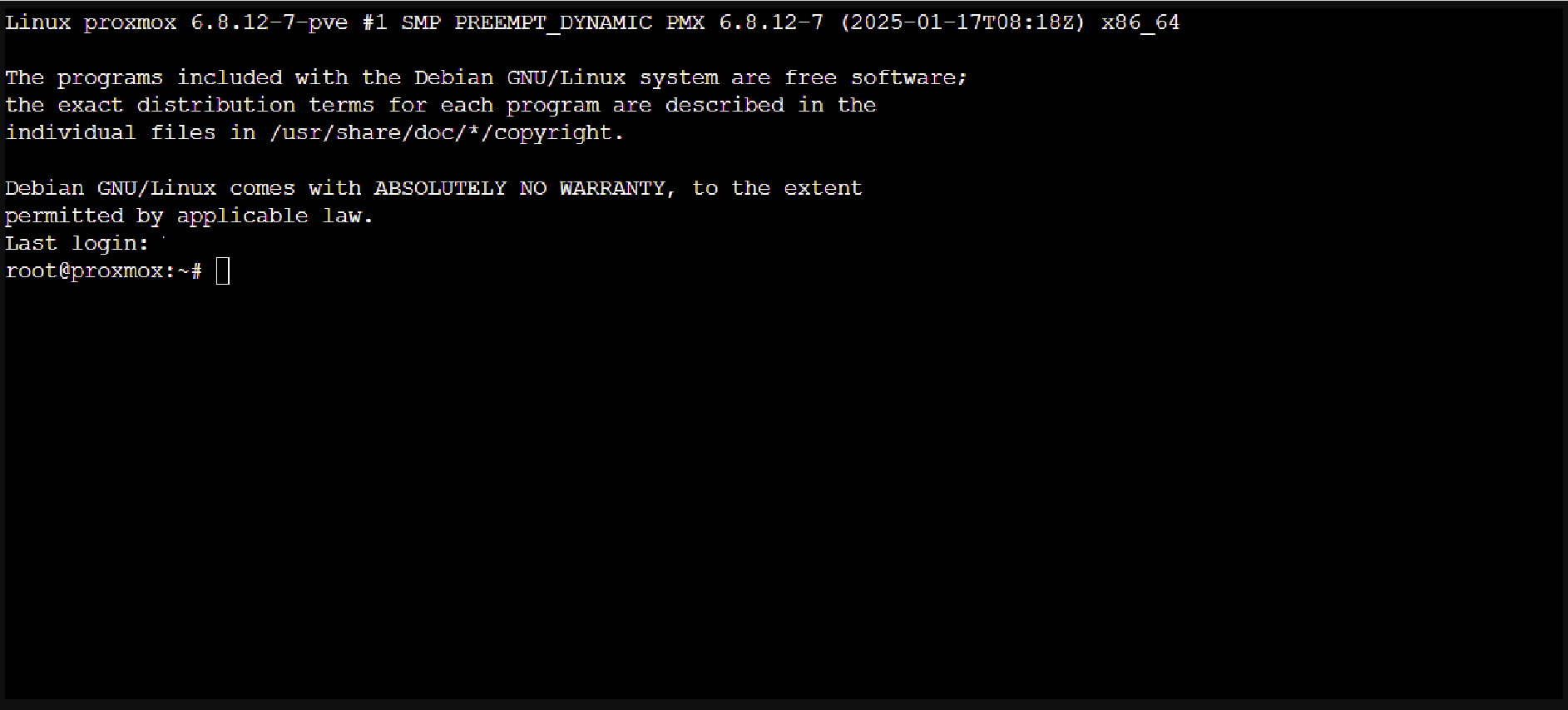
- Online connectivity update:
apt-get update
apt-get dist-upgrade
Step 2 - Create a new VM shell
- Access the Proxmox web UI and click Create Virtual Machine.
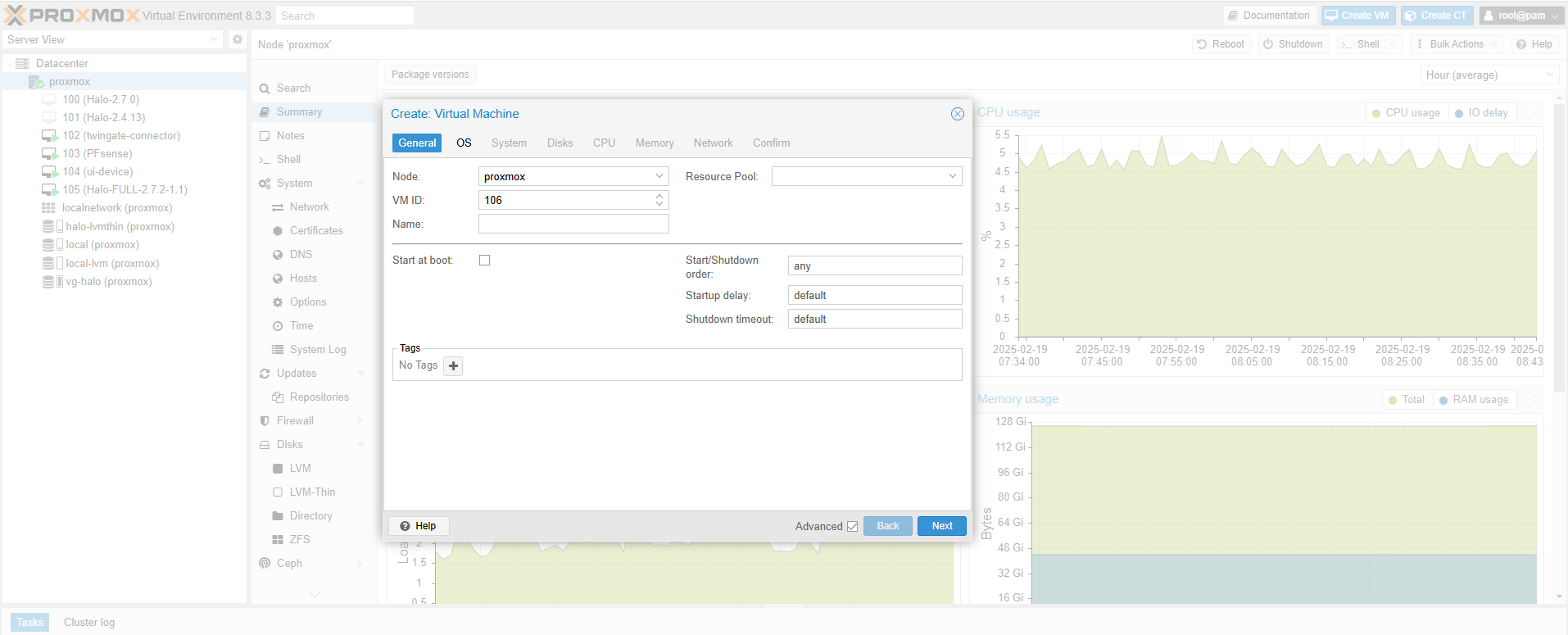
- Under the General tab, provide a VM name (e.g.,
Glasswall-Halo).
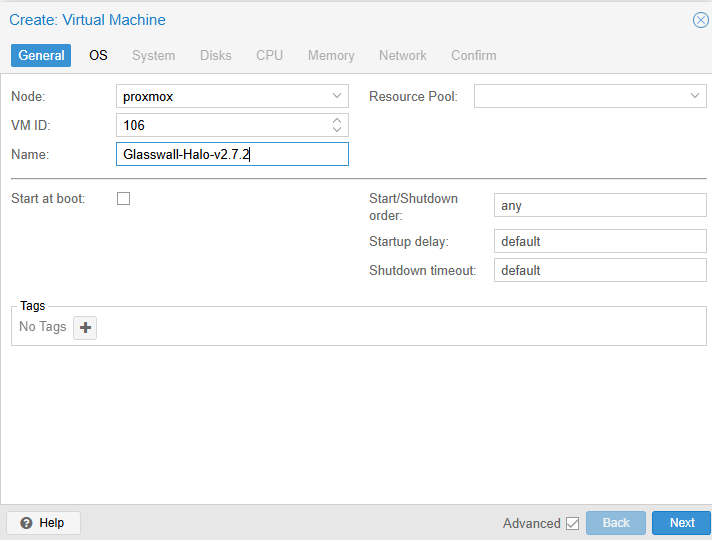
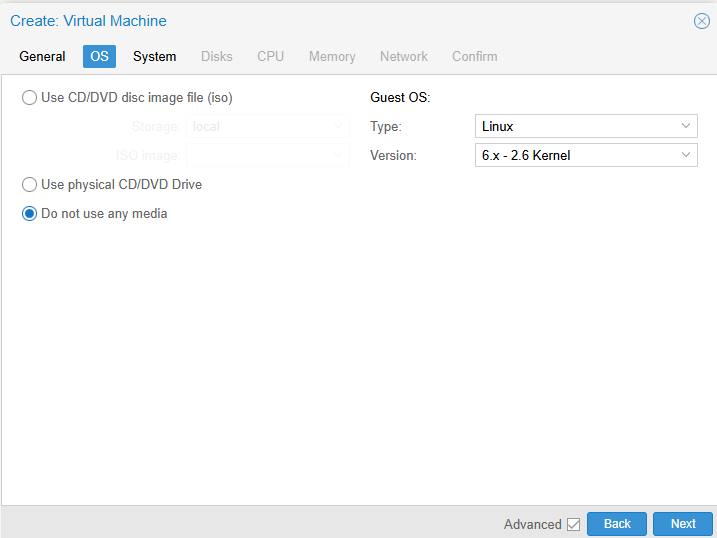
- Under the OS tab, select a generic Linux type (e.g.,
Linux 5.x/6.x). You do not need an ISO.
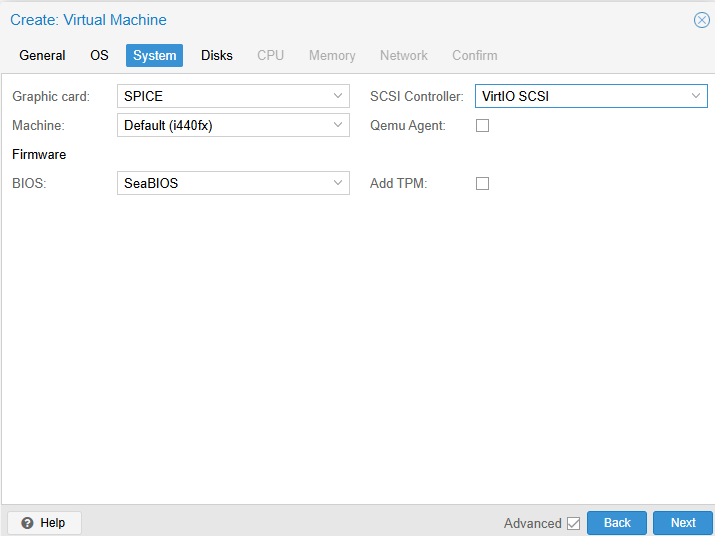
- System:
- BIOS: set to seaBIOS.
- SCSI controller: VirtIO SCSI.
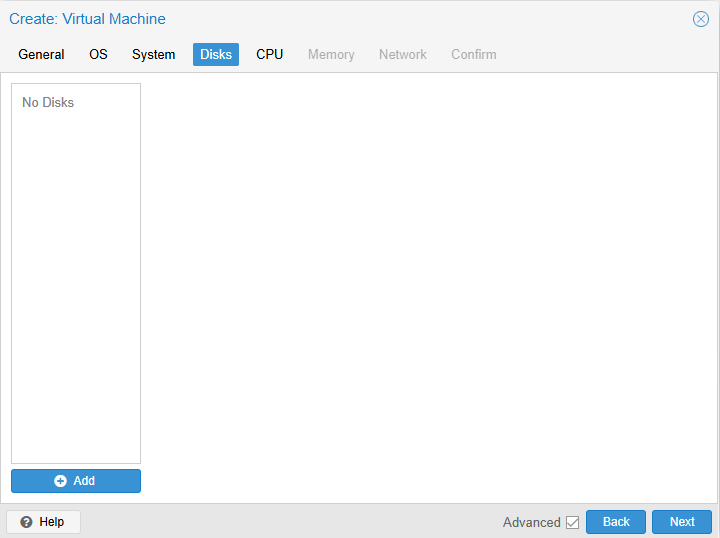
- Hard disk: remove the default disk (we’ll attach a converted disk later).
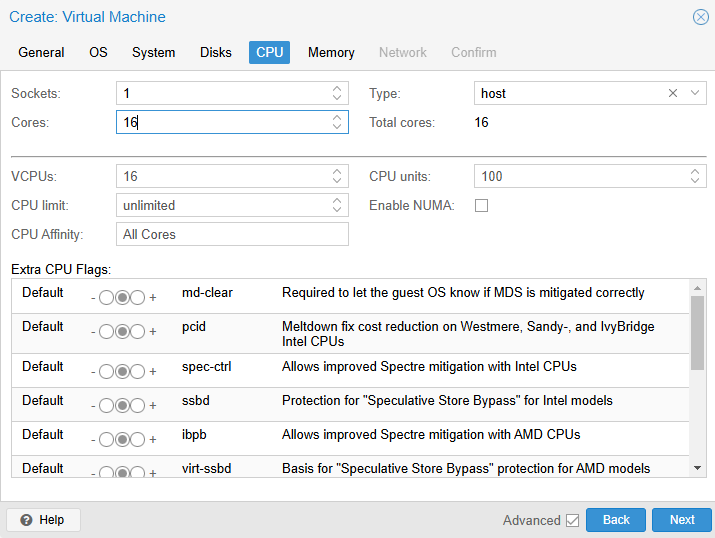
- CPU: set type to host for maximum performance; allocate at least 16 cores.
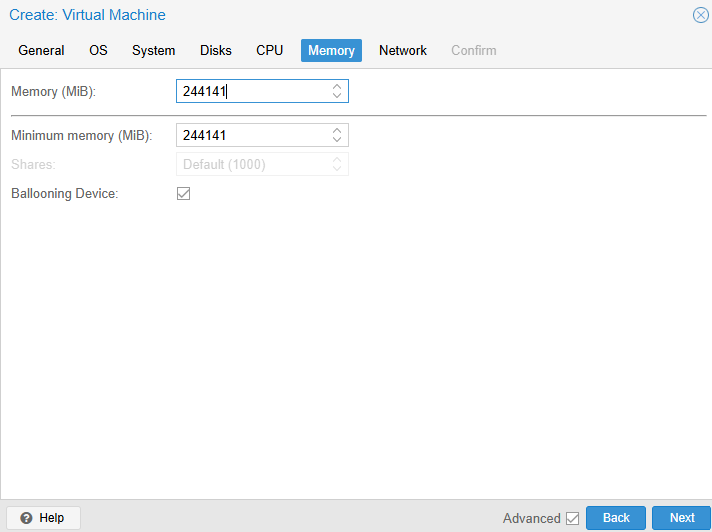
- Memory: allocate 32–64 GB.
- Network: attach a NIC to the desired bridge (e.g.,
vmbr0), typically VirtIO model.
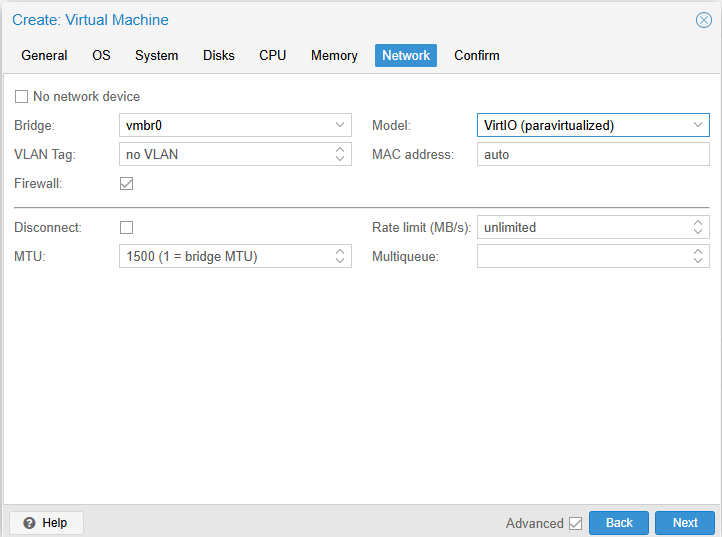
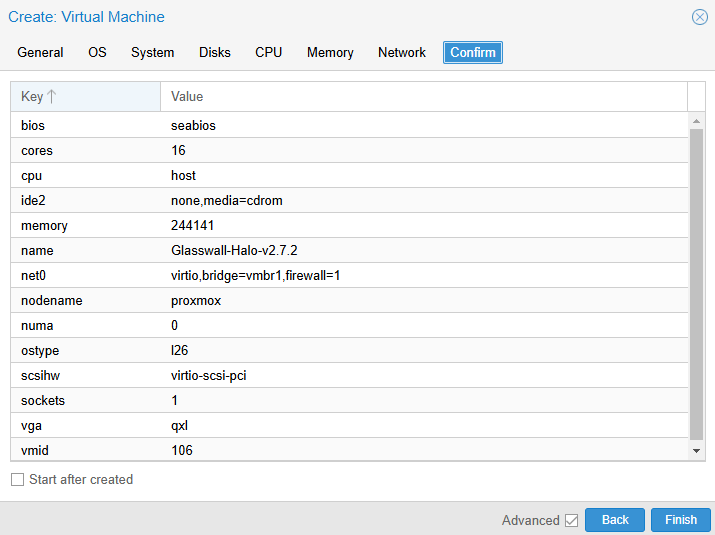
- Under the Confirm tab, view the summary and click Finish.
Note: do not start the VM yet.
Step 3 - Extract and transfer the OVA
-
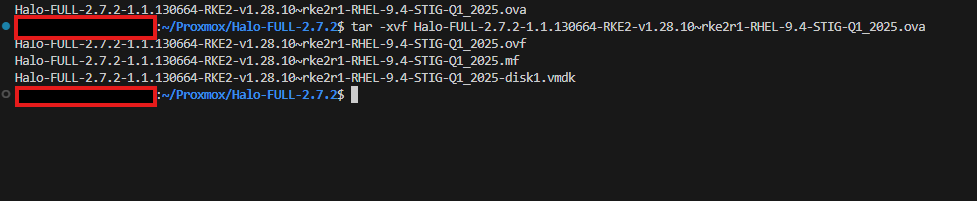
Extract the OVA on your local system by running the following command:
tar -xvf Halo-FULL-<version>.ova
-
Identify the
.vmdkfile (e.g.,Halo-full-<version>-disk1.vmdk). -
Upload the
.vmdkto proxmox, e.g.:scp Halo-FULL-...disk1.vmdk root@<Proxmox-IP>:/root/

Step 4 - Prepare storage (optional LVM-Thin)
Why LVM-Thin? It provides thin provisioning and snapshot support, making it ideal for larger or frequently updated VM disks. However, you can also attach disks to directory-based or other storage types in Proxmox.
Example steps to create LVM-Thin:
# Identify a free disk, e.g. /dev/sdb
pvcreate /dev/sdb
vgcreate vg-halo /dev/sdb
# Create a thin pool consuming all space
lvcreate -l 100%FREE -T -n thin-halo vg-halo
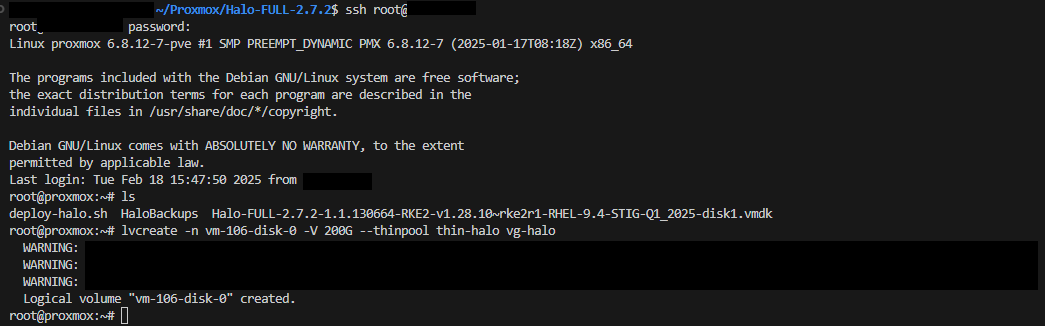
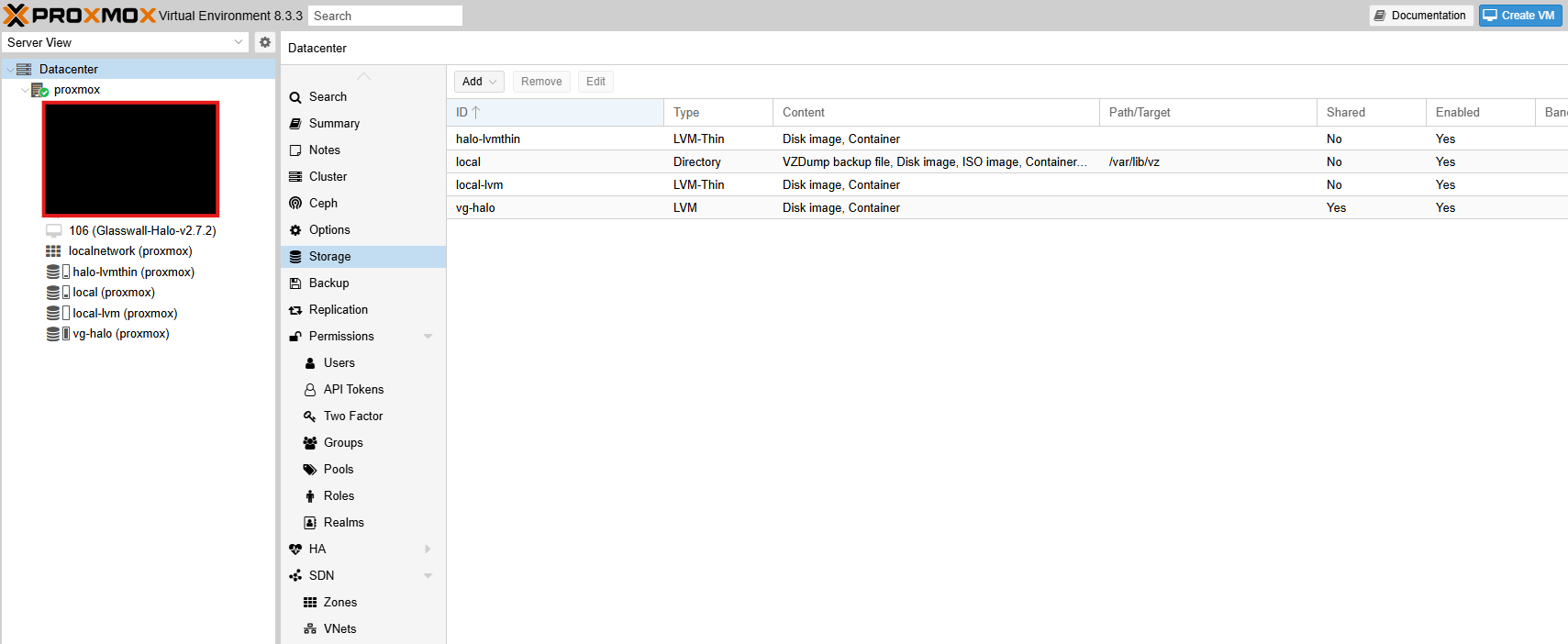
After creating your thin pool, add it via Datacenter -> Storage -> Add -> LVM-Thin. Choose vg-Halo as the volume group and Thin-Halo as the thin pool.
Step 5 - Convert and attach the Halo disk
Option A: qm importdisk
SSH into your Proxmox host
If using storage that supports import (e.g., directory or LVM-Thin), run:
qm importdisk <VM_ID> /root/Halo-FULL-...disk1.vmdk <StorageName> --format qcow2
<Vm_id>is the ID assigned to your VM (e.g., 100).<Storagename>is the Proxmox storage target (e.g.,local-lvm,Halo-lvmthin).- After completion, go to vm -> hardware, find the “unused disk,” then edit and select ide0.
Option B (recommended): manual conversion (qemu-img)
SSH into your Proxmox host
If qm importdisk encounters errors (e.g., “zeroinit”), or if you prefer more direct management:
-
Create a thin-provisioned volume for the Halo disk:
lvcreate -n vm-<VM_ID>-disk-0 -V 200G --thinpool thin-halo vg-halo -
Convert the
.vmdkto a raw disk:qemu-img convert -f vmdk -O raw /root/Halo-FULL...disk1.vmdk /dev/vg-halo/vm-<VM_ID>-disk-0 -
Attach disk to the VM:
qm set <VM_ID> --ide0 halo-lvmthin:vm-<VM_ID>-disk-0

Step 6 - Final VM configuration
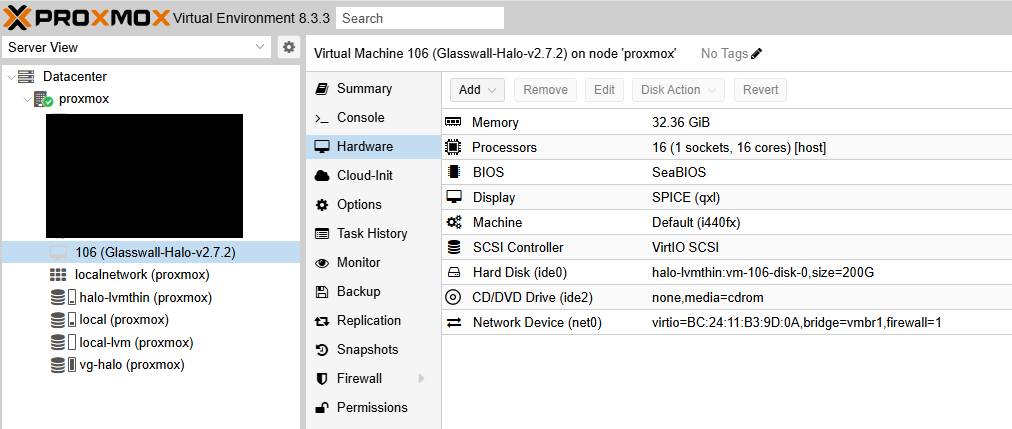
- In VM -> Hardware:
- IDE0 should be your main Halo disk.
- Confirm “Virtio SCSI” is listed as the SCSI controller.
-
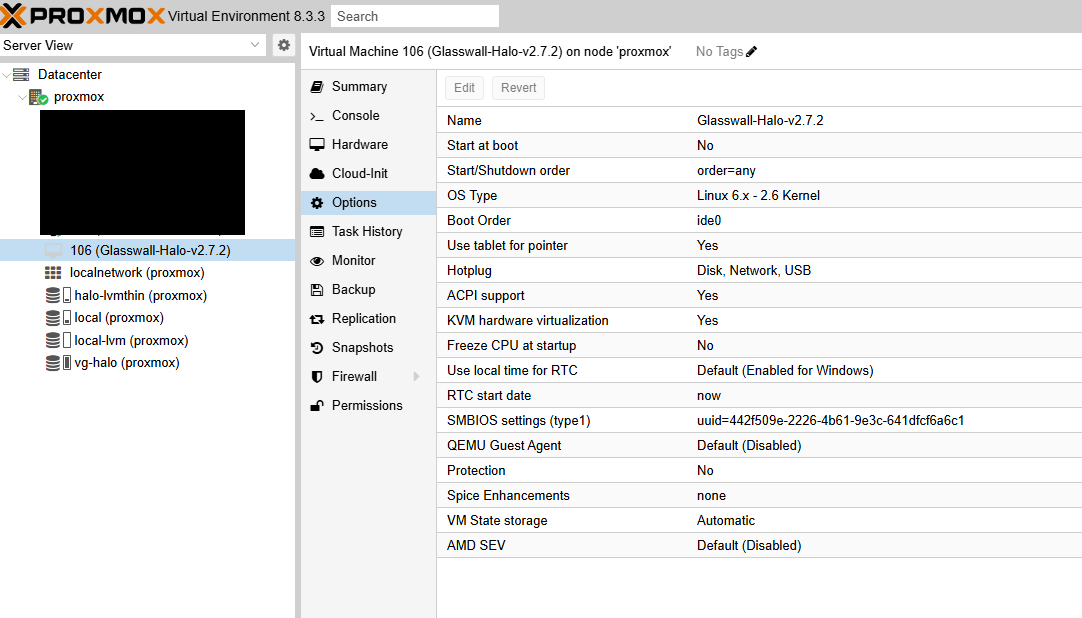
In VM -> Options:
- Ensure Boot order sets IDE0 as first.
- Verify BIOS is seaBIOS.
- KVM hardware virtualization and ACPI should be enabled.
-
Optional: QEMU guest agent can be installed inside the Halo VM for advanced functionality.
Step 7 - Initial boot
-
Start the VM in the Proxmox UI.
-
Watch the console; it may take up to a minute to pass “Probing EDD…” on first boot.
-
Configure network inside the Halo VM:
- For static IP: follow the Network Manager configuration guide to continue Halo setup. Return here when finished.
- For DHCP: ensure your DHCP server is operational.
-
Finalize application-level configurations (i.e. start_halo.sh, syslog server, tls).
Deploying from a Glasswall backup (.vma.zst)
If our Glasswall team has provided you with a pre-configured Proxmox backup, you can skip the OVA/VMDK steps.
Step 1 - Uploading and restoring the backup
-
Copy the
.vma.zstbackup file to your Proxmox host’s backup directory:scp glasswall-halo-backup.vma.zst root@<Proxmox-IP>:/var/lib/vz/dump/ -
In the Proxmox UI, go to Node -> Local -> Backup.
-
Locate the
.vma.zstfile and select Restore. -
Assign a new VM ID (e.g., 101) and target storage.
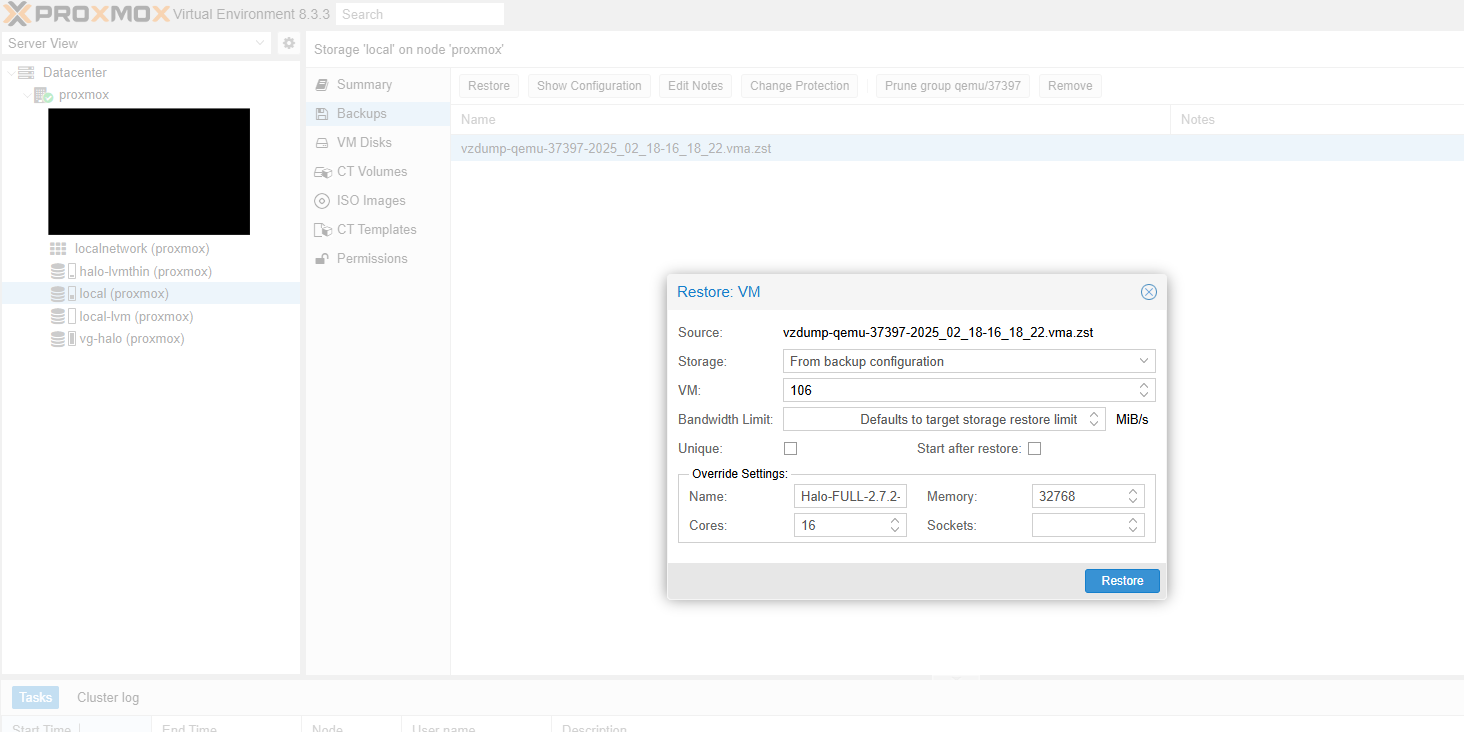
Step 2 - Verifying disk attachment
- After restore, open VM -> Hardware.
- Confirm that the main disk is attached to IDE0.
- Ensure BIOS is set to seaBIOS under VM -> Options.
Step 3 - Starting the VM
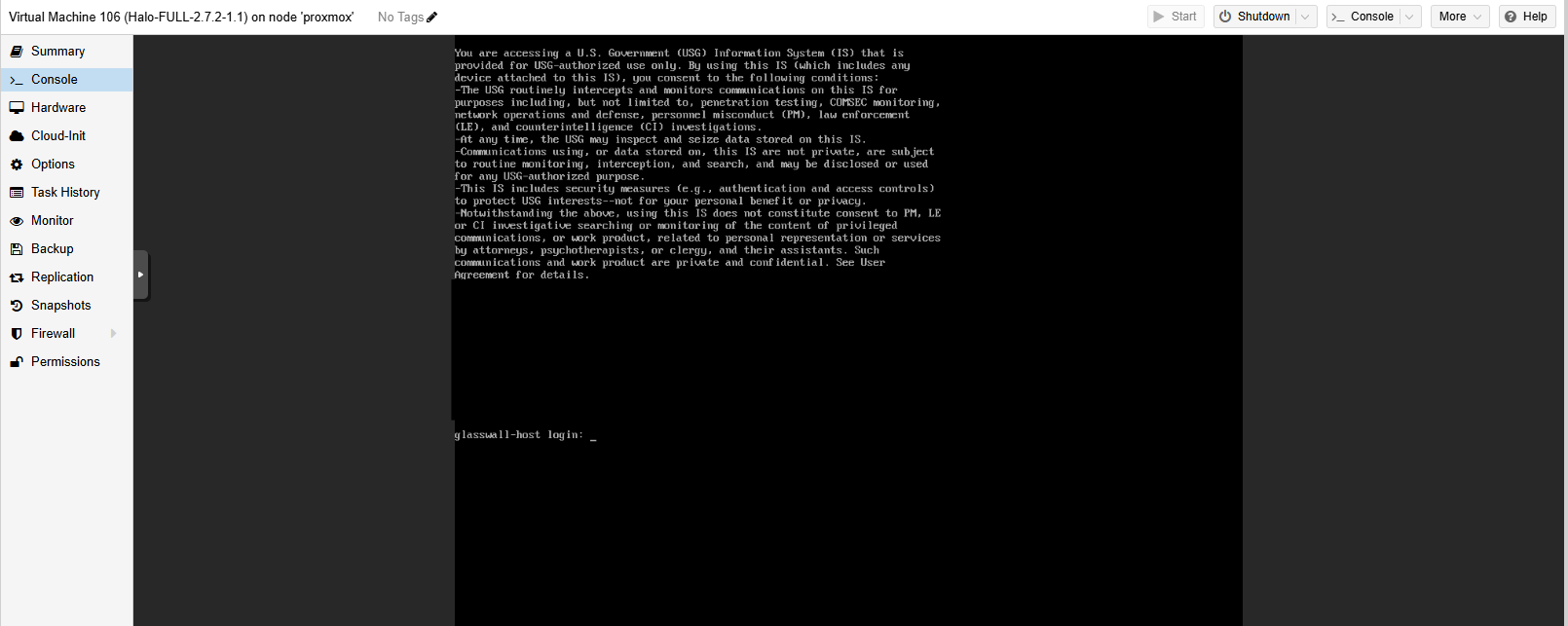
- Power on the VM.
- Watch the console for any errors.
- Configure the network settings, if not already set.
- Proceed with any final configuration steps within Halo.
Troubleshooting and FAQs
zeroinit error
This may occur when using qm importdisk with certain storage types or older QEMU versions.
Solution: use manual conversion with
qemu-img.
Network configuration issues
- If the VM interface is named differently (e.g.,
ens18vs.eth0), adjust yourifcfg-files accordingly. - Use
nmcli device showorip ato confirm the interface name.
Why IDE + seaBIOS?
- STIG-hardened RHEL images require legacy BIOS for certain boot configurations.
- IDE ensures broad compatibility and avoids known issues with some virtual drivers.
Additional best practices
- Snapshots: leverage Proxmox snapshots or LVM-Thin snapshots for quick rollbacks.
- Backups: regularly use
vzdumpto create compressed backups (.vma.zst). - Resource monitoring: keep an eye on CPU and memory usage for production loads.
Initiate Glasswall Halo services
- Execute the following command to launch Glasswall Halo:
sudo start_halo.sh
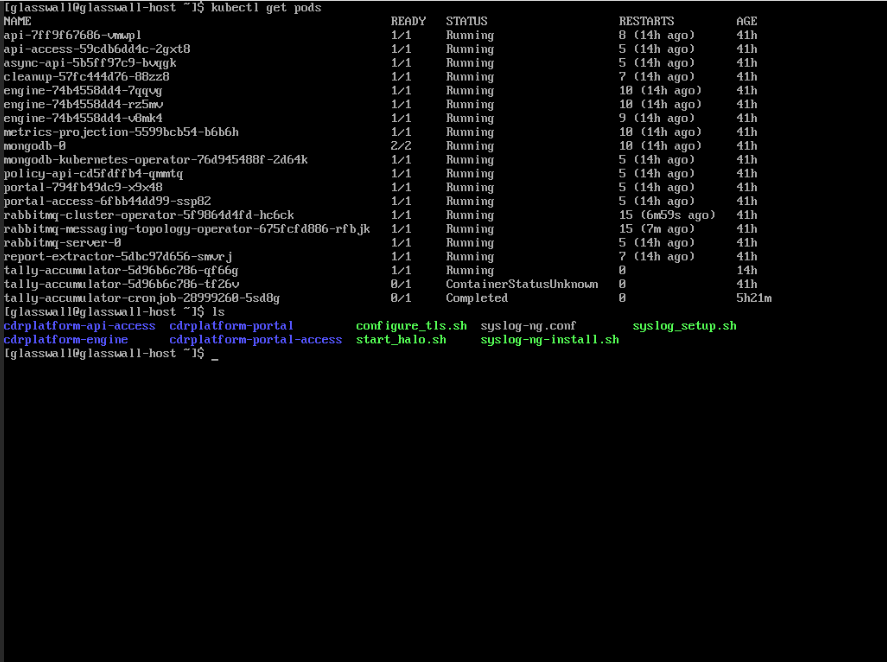
- Once the script has completed, confirm all the Glasswall Halo services and pods are running using the following command:
kubectl get pods
Access Glasswall Portal
-
Depending on your network configuration and/or domain configuration, you can now clean files by accessing the Glasswall portal through the domain name and/or ip address assigned to your virtual machine.
-
Run the following command to confirm network status:
sudo netstat -tlnp