Single Sign-On
Glasswall Halo can be configured to enable Single Sign-On (SSO) with OpenID Connect (OIDC).
SSO is an authentication method that allows users to sign in using one set of credentials to multiple independent software systems. Using SSO means a user doesn't have to sign in to every application they use.
Below is information on how to configure SSO within your Glasswall Halo solution using Microsoft Entra ID as the identity and access management (IAM) provider.
In principle, any IAM solution that offers OIDC may be configured to support SSO for Glasswall Halo.
Supported identity providers
Because Halo portal sign-in is built on OpenID Connect (OIDC), any OIDC-compliant identity provider (IdP) can be used. Glasswall provides step-by-step guidance for the following providers:
| Identity provider | Guidance | Typical use |
|---|---|---|
| Microsoft Entra ID (formerly Azure AD) | This page, including Azure Government (GovCloud) | Cloud deployments using Microsoft 365 / Entra ID |
| Keycloak | Keycloak SSO integration | Air-gapped and on-premises deployments |
| Okta | Okta authorization server, Okta portal SSO, Okta API bearer authentication | Organizations standardized on Okta |
Other OIDC providers (for example, Ping Identity or Google Workspace) are not officially supported, but can often be configured using the same pattern: point the portal and access services at your provider's OIDC authority and create the equivalent application registrations/clients. Because these providers are untested, you may encounter unknown issues—if you are planning to use another OIDC provider, contact Glasswall Support first.
SSO applies to portal sign-in, not the REST API
SSO (OIDC) governs how users sign in to the Halo portal. The Halo REST API authenticates separately—when API authentication is enabled it uses Basic authentication (an organization ID and token) or a Bearer token, and it never uses the interactive OIDC sign-in flow. Enabling SSO on a deployment does not change how the API is called.
This is why API requests against an SSO-enabled deployment still require Basic (or Bearer) credentials whenever API authentication is enabled, and why a 401 Unauthorized on /api/... usually means the API credentials were never provisioned rather than an SSO problem. See:
- Authentication overview—how to authenticate API requests.
- Enable API authentication—how API Basic-auth credentials (organization ID and tokens) are provisioned and rotated.
If SSO is the only configured sign-in method, administrators can be locked out if the identity provider becomes unreachable or misconfigured. Keep a recovery path available:
- Retain a working set of API Basic-authentication credentials (organization ID and token). These are independent of SSO and can be used to call the API directly.
- To regain administrative access to the portal without SSO, redeploy the
cdrplatform-portalchart with SSO disabled (--set configuration.OIDC=null) or with--set configuration.AutoAdmin=true. See Enable admin access without authentication.
An expired or over-limit license disables the affected Halo features, but it does not lock administrators out of the portal. You can still sign in (using your configured sign-in method) to view and update the license—see License management.
Prerequisites for Microsoft Entra ID integration
- A Microsoft enterprise agreement for a Microsoft Entra ID account is required to enable this SSO option.
- A domain name must be configured for the Halo portal (portal service) to use SSO authentication.
- Azure App Registrations are required whenever SSO authentication using Microsoft Entra ID needs to be enabled.
- Three App Registrations must be created:
Cdrplatform-API-accessCdrplatform-portal-accessCdrplatform-portal-client
- The attached shell script helps create these app registrations. Enter the domain name you would like to use for the portal as an argument to the script. Example:
bash create-azure-app-registrations.sh halo.glasswall.com
By default the script creates all three registrations. To set up only one type of authentication, pass --skip-api to create just the Portal registrations, or --skip-portal to create just the API registration:
# Portal SSO only (skips api-access)
bash create-azure-app-registrations.sh --skip-api halo.glasswall.com

# API authentication only (skips portal-access and portal-client)
bash create-azure-app-registrations.sh --skip-portal
Prefer to set them up by hand? Follow Creating the Azure app registrations manually for the equivalent steps in the Microsoft Entra admin center.
- The enterprise application
ar-Halo-portal-clientmust be granted admin consent.
Configuration
Enable Microsoft Entra ID API authentication
To enable Microsoft Entra ID based authentication, set configuration.authenticationscheme=bearer. Also set tenant_id, api_domain and valid_audiences variables while deploying the Helm chart.
Note: Set valid_audiences to the Application (client) ID of the cdrplatform-api-access app registration (found in the Azure portal under App registrations > Overview).
tenant_id=""
api_domain=""
valid_audiences=""  # Application (client) ID of the cdrplatform-api-access app registration (copy from Azure portal)
helm upgrade cdrplatform-api-access cdrplatform-api-access \
  --reuse-values \
  --set ingress.tls.enabled=true \
  --set ingress.tls.domain=${api_domain} \
  --set ingress.tls.secretName=tls-secret \
  --set configuration.AuthenticationScheme=Bearer \
  --set configuration.Authentication__Schemes__Bearer__ValidAudiences__0=${valid_audiences} \
  --set configuration.Authentication__Schemes__Bearer__ValidIssuer=https://sts.windows.net/${tenant_id}/ \
  --set configuration.Authentication__Schemes__Bearer__Authority=https://login.microsoftonline.com/${tenant_id}/v2.0/ \
  --atomic
Configure SSO login for Glasswall Halo
Set portal_domain, portal_client_id, tenant_id variables in the commands below.
portal_domain is the domain used for TLS on the portal service and is also the domain used in the cdrplatform-portal-client App Registration.
portal_client_id is the application (client) ID of the cdrplatform-portal-client App Registration.
enabled_pages includes additional pages based on which services are deployed:
- ICAP Server: add
IcapSettings,IcapRequests,IcapReporting - Storage Monitor: add
SharePointMonitoring,OneDriveMonitoring,OutlookMonitoring
portal_domain=""
portal_client_id=""
tenant_id=""
# Add pages based on deployed services:
#   + ICAP Server:     IcapSettings,IcapRequests,IcapReporting
#   + Storage Monitor: SharePointMonitoring,OneDriveMonitoring,OutlookMonitoring
enabled_pages="SystemSettings\,PolicySettings\,ValidationSettings"
helm upgrade cdrplatform-portal cdrplatform-portal \
  --reuse-values \
  --set ingress.tls.enabled=true \
  --set ingress.tls.domain=${portal_domain} \
  --set ingress.tls.secretName=tls-secret \
  --set configuration.BackendUrl="https://${portal_domain}" \
  --set configuration.EnabledPages=${enabled_pages} \
  --set configuration.OIDC.ProviderOptions.Authority="https://login.microsoftonline.com/${tenant_id}/v2.0" \
  --set configuration.OIDC.ProviderOptions.RedirectUri="https://${portal_domain}/authentication/login-callback" \
  --set configuration.OIDC.ProviderOptions.ClientId="${portal_client_id}" \
  --set configuration.OIDC.ProviderOptions.PostLogoutRedirectUri="https://${portal_domain}/authentication/logout-callback" \
  --atomic
Next, the portal access service needs to enable SSO authentication using Microsoft Entra ID.
Set tenant_id, portal_domain and valid_audiences variables below.
Note: Set valid_audiences to the Application (client) ID of the cdrplatform-portal-access app registration (found in the Azure portal under App registrations > Overview).
tenant_id=""
portal_domain=""
valid_audiences=""  # Application (client) ID of the cdrplatform-portal-access app registration (copy from Azure portal)
helm upgrade cdrplatform-portal-access cdrplatform-portal-access \
  --reuse-values \
  --set ingress.tls.enabled=true \
  --set ingress.tls.domain=${portal_domain} \
  --set ingress.tls.secretName=tls-secret \
  --set configuration.AuthenticationScheme=Bearer \
  --set configuration.Authentication__Schemes__Bearer__ValidAudiences__0=${valid_audiences} \
  --set configuration.Authentication__Schemes__Bearer__ValidIssuer=https://sts.windows.net/${tenant_id}/ \
  --set configuration.Authentication__Schemes__Bearer__Authority=https://login.microsoftonline.com/${tenant_id}/v2.0/ \
  --atomic
Azure Government (GovCloud) deployments
If your tenant is in Azure Government rather than the commercial Azure cloud, the Microsoft Entra ID endpoints differ. Replace the commercial endpoints used in the commands above with their Azure Government equivalents:
| Purpose | Commercial Azure | Azure Government |
|---|---|---|
| Login / OIDC authority | https://login.microsoftonline.com | https://login.microsoftonline.us |
Microsoft Graph (used by create-azure-app-registrations.sh) | https://graph.microsoft.com | https://graph.microsoft.us |
For example, the portal Authority becomes:
--set configuration.OIDC.ProviderOptions.Authority="https://login.microsoftonline.us/${tenant_id}/v2.0"
and the access services' Authority becomes:
--set configuration.Authentication__Schemes__Bearer__Authority=https://login.microsoftonline.us/${tenant_id}/v2.0/
Note: Confirm the exact issuer, authorization_endpoint and jwks_uri for your tenant by retrieving the OIDC metadata document from your authority, for example https://login.microsoftonline.us/${tenant_id}/v2.0/.well-known/openid-configuration, and use those values in the ValidIssuer and related settings. When running create-azure-app-registrations.sh against an Azure Government tenant, sign in to the Government cloud first (az cloud set --name AzureUSGovernment) before running the script.
User roles
To assign roles to portal users
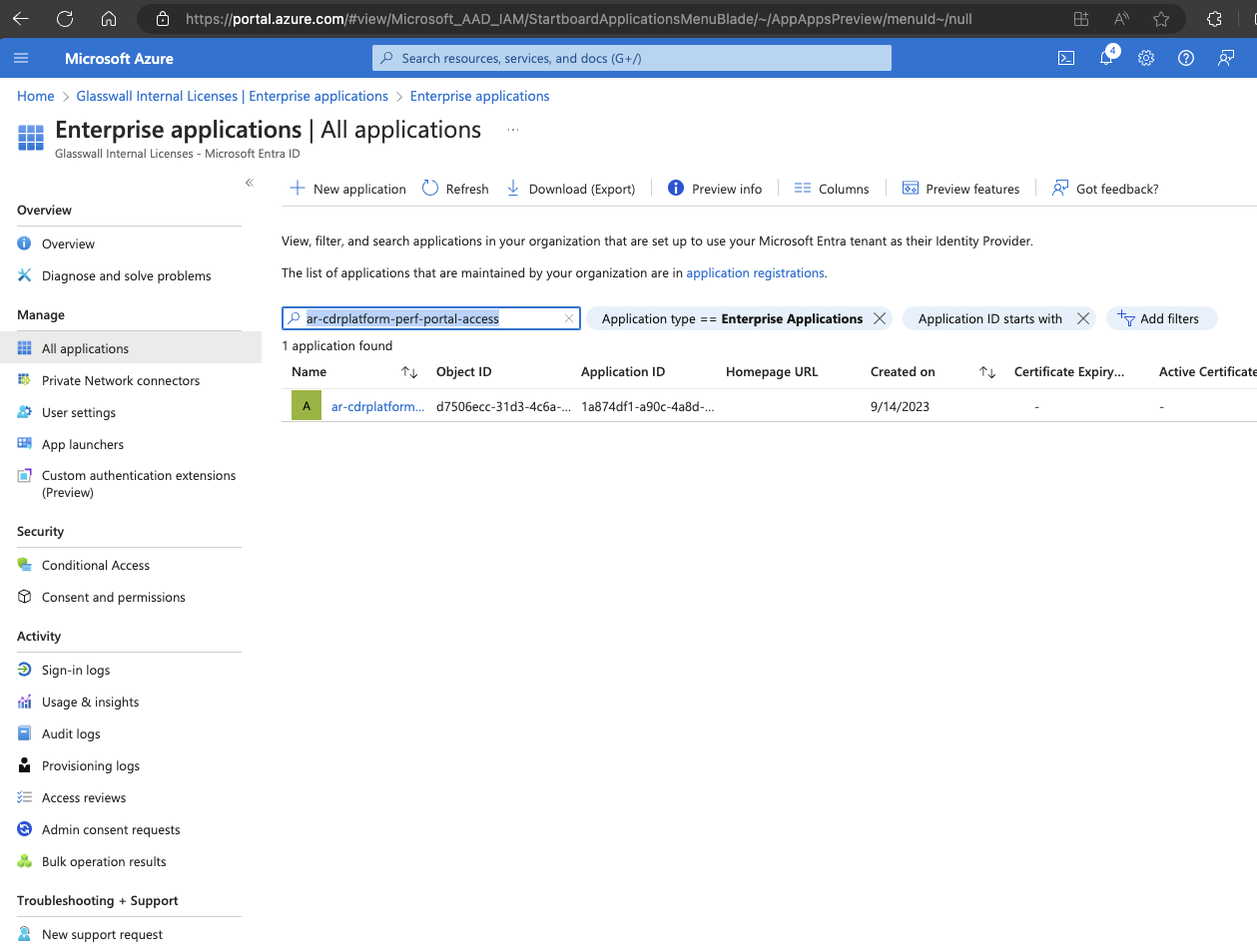
- Navigate to the enterprise application titled
ar-cdrplatform-portal-accesswithin Microsoft Entra ID.
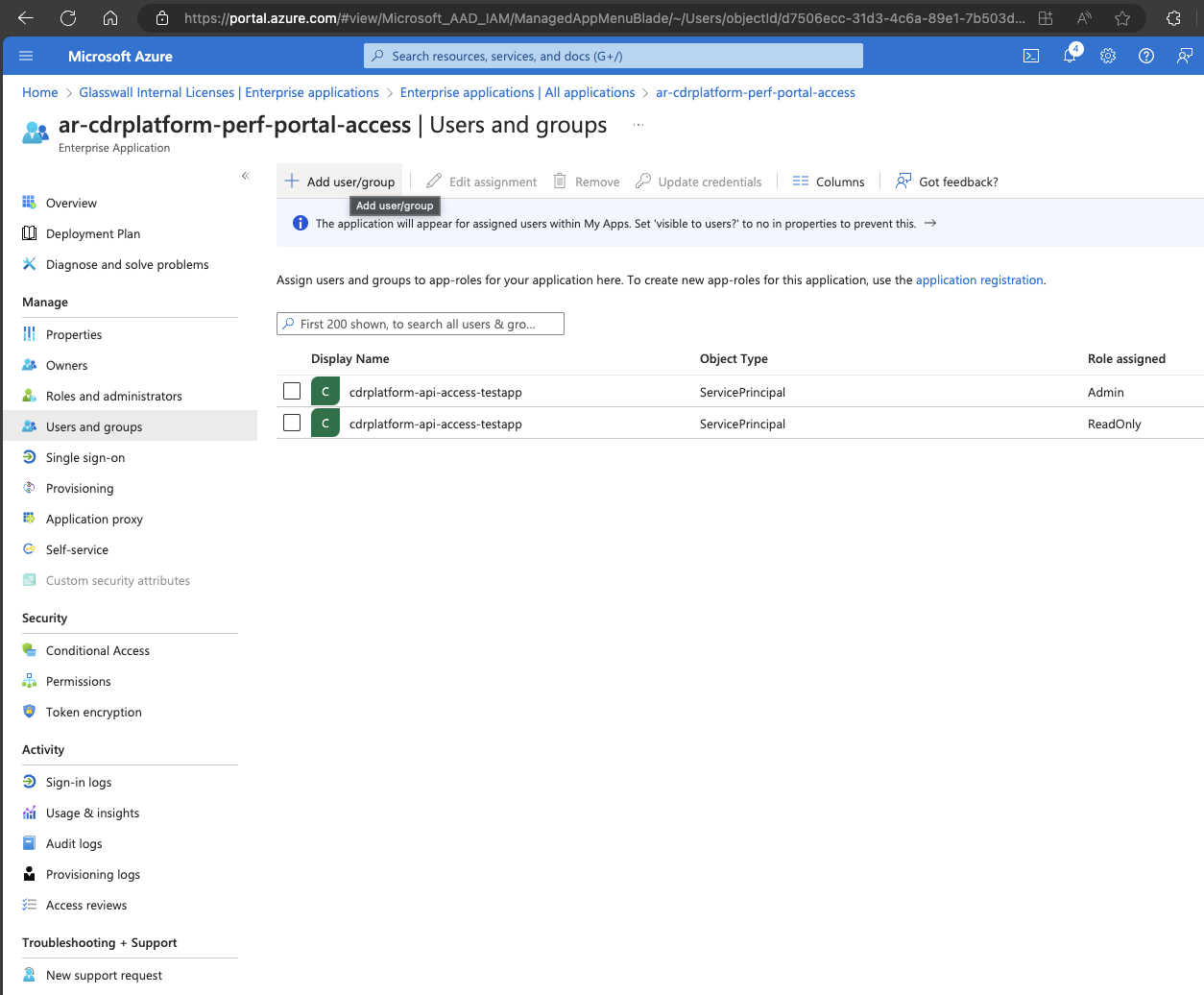
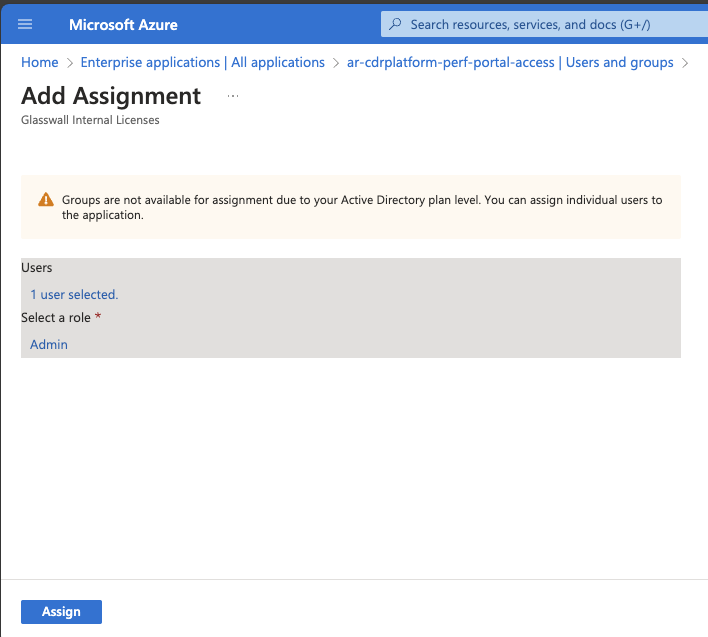
Note: The screenshots use ar-cdrplatform-perf-portal-access as an example.
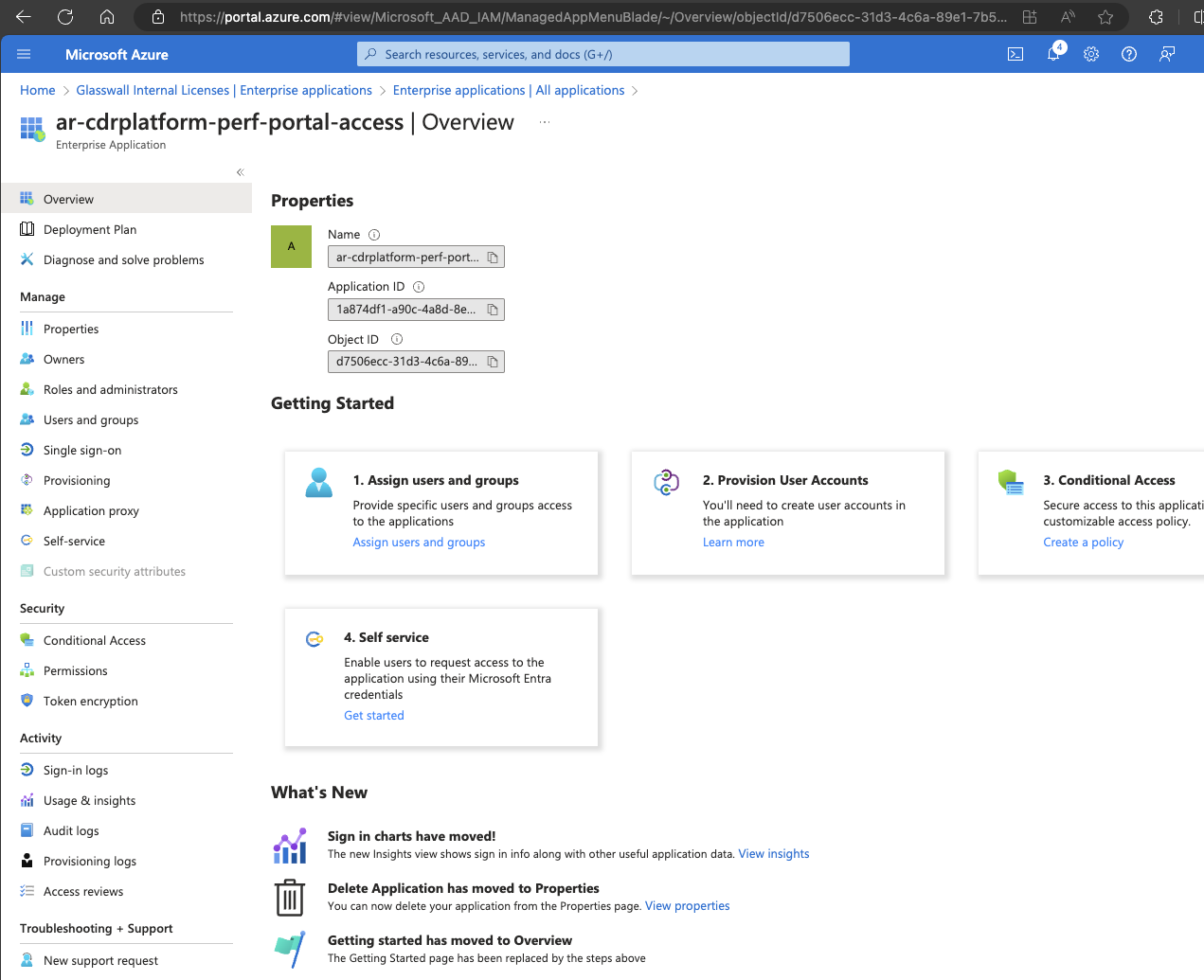
- Navigate to the Users and groups section and select Add user/group.
- Select the desired user or group, then choose the appropriate role.
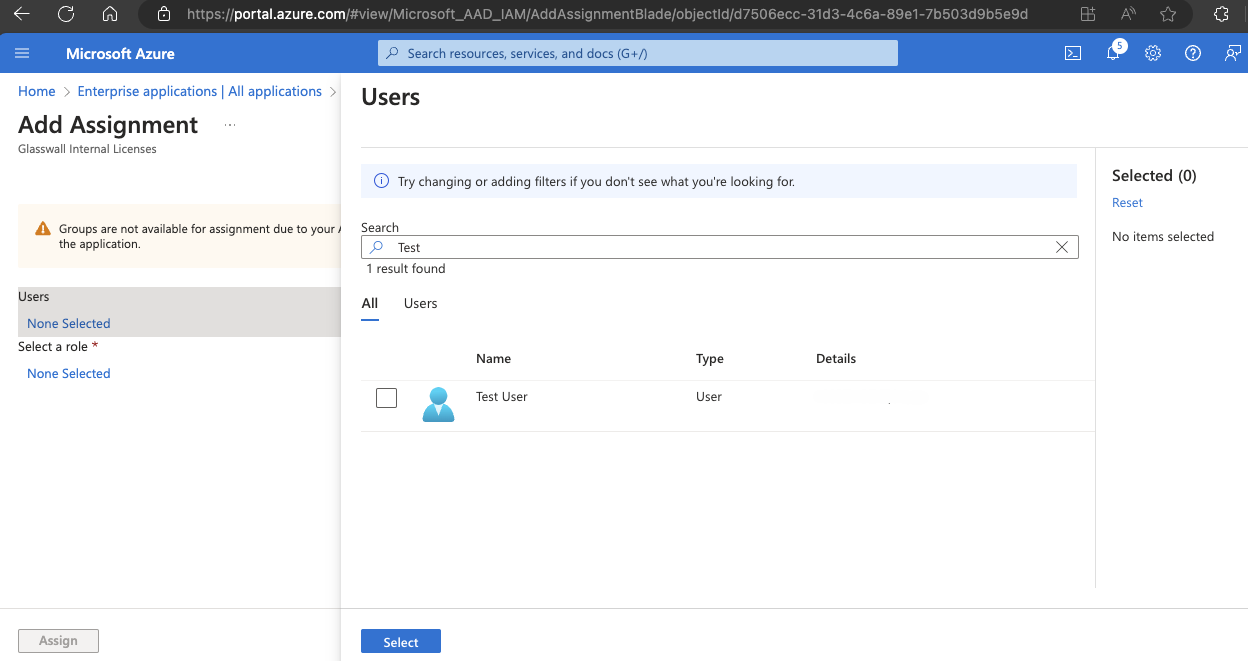
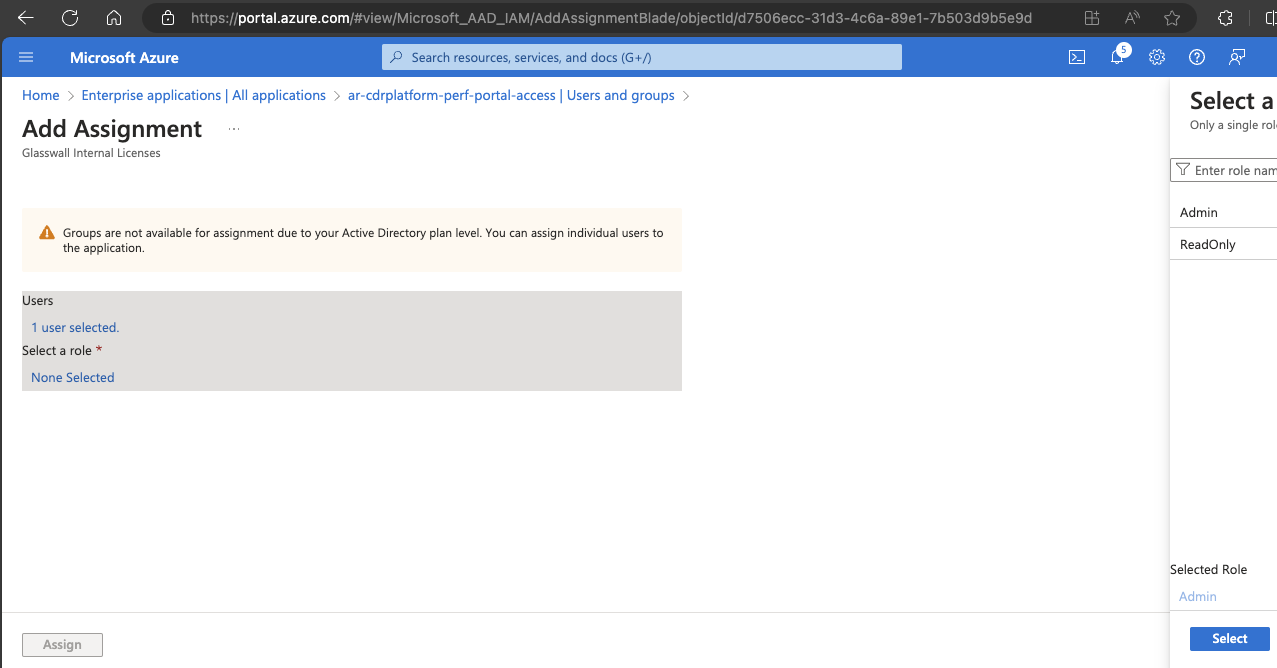
- Click Assign.
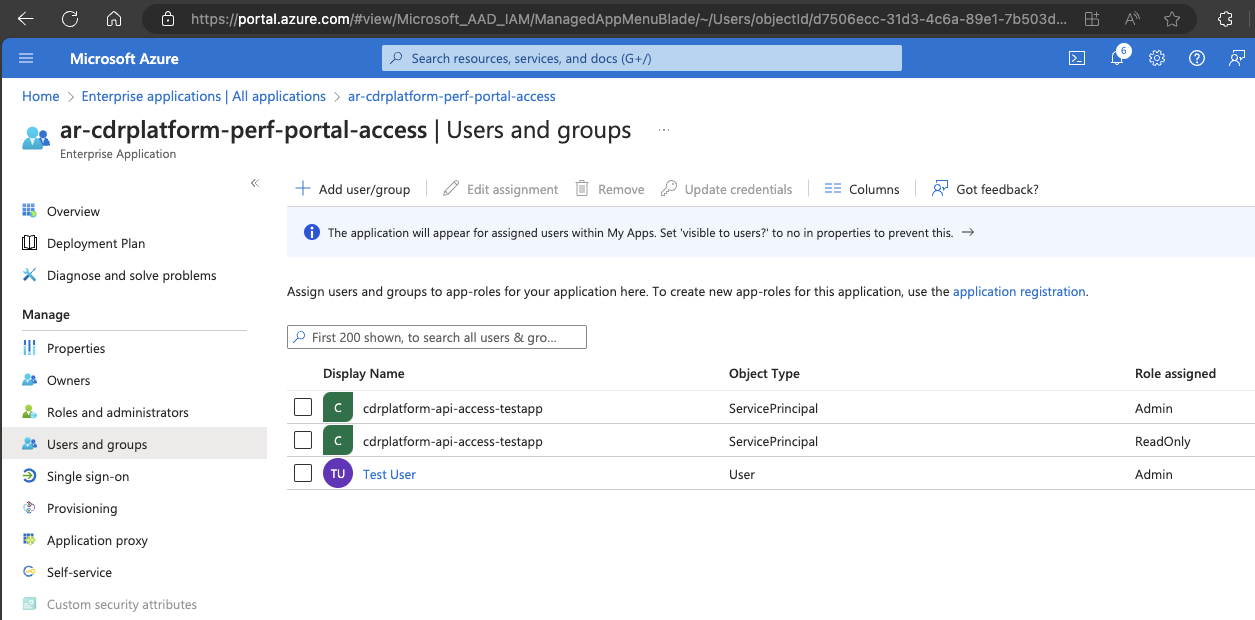
To assign roles to API users
- Navigate to the enterprise application titled
ar-cdrplatform-API-accessin Microsoft Entra ID. - From the Users and groups section, click Add user/group.
- Select the desired user or group, then choose the appropriate role.
- Click Assign.