OneDrive
Glasswall Meteor allows users to set up automatic folder synchronizations with various cloud drives.Follow these steps to sync Glasswall Meteor with folders in your OneDrive:
- Download and install the OneDrive desktop app.
Note: if you're using Windows 10, OneDrive is already installed on your PC.
- Login using your account details, if applicable.
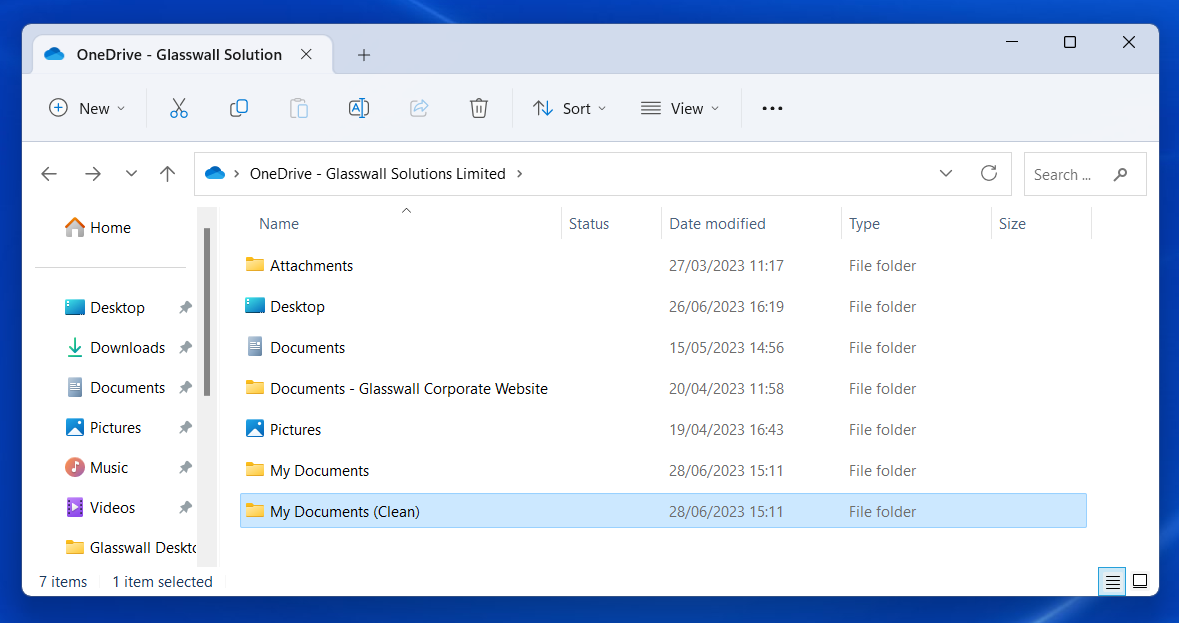
- From your File Explorer, navigate to your OneDrive.
- Identify the folder you would like to sync, and create a new folder for your clean files.
- Launch Glasswall Meteor and navigate to the Sync and clean page.
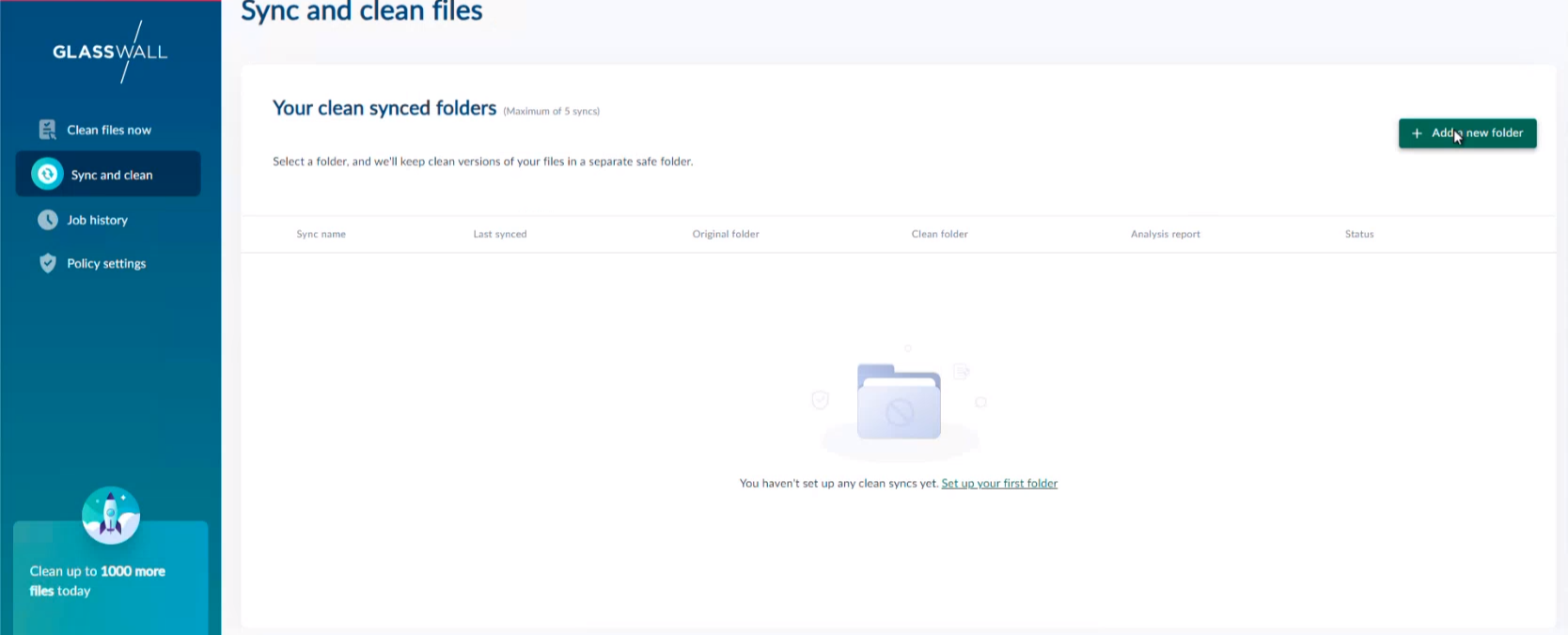
- Click Add a new folder.
- Enter a Sync name.
- From the Original folder field, click Browse and select the folder you would like to sync in your OneDrive.
- From the Clean folder field, click Browse and select the folder you created earlier to store your clean files.
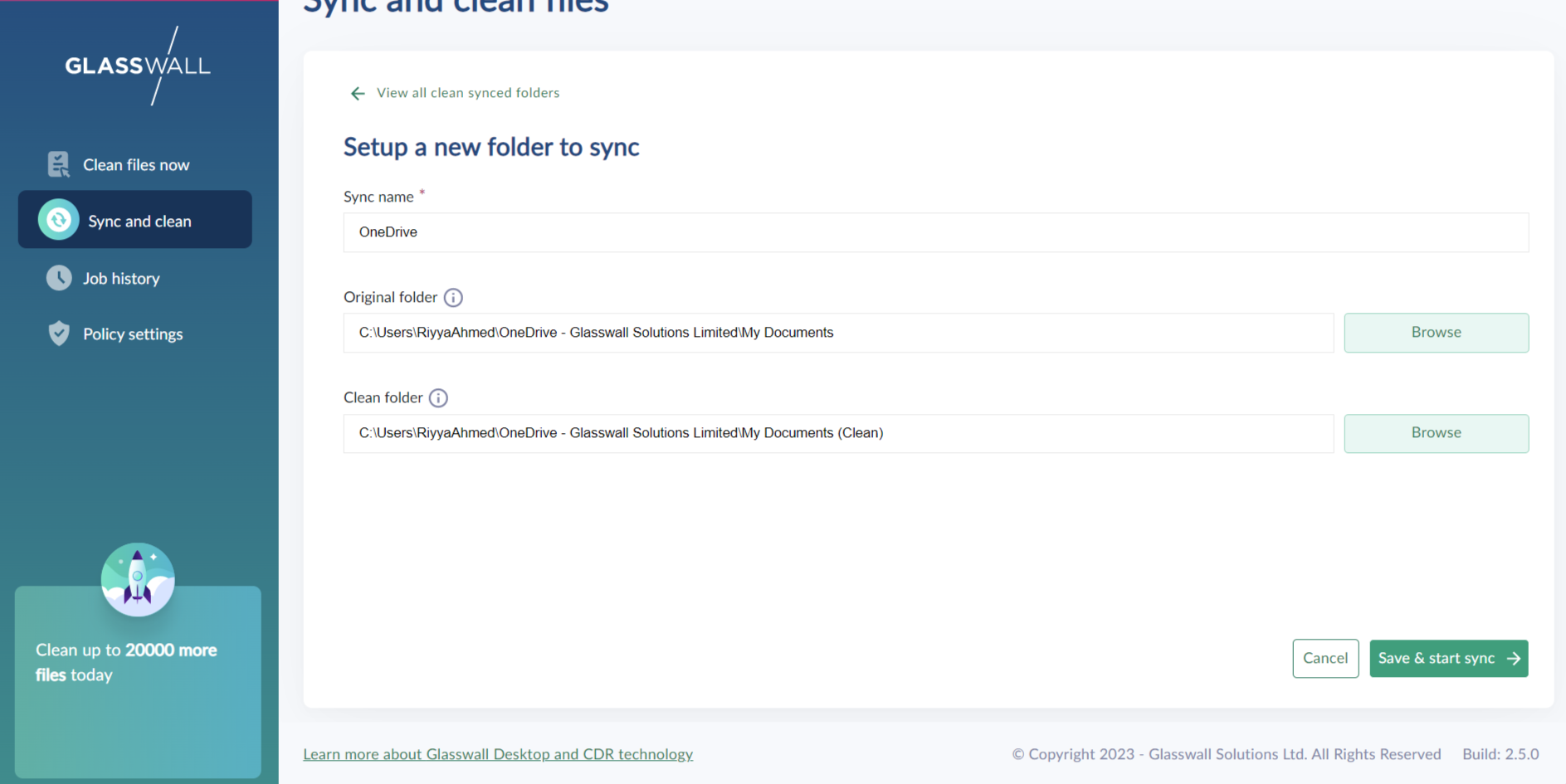
- Click Save & start sync, and a confirmation popup will appear.
-95d80c9c9b65ea8be30b1235b4fd1063.png)
- Click OK.
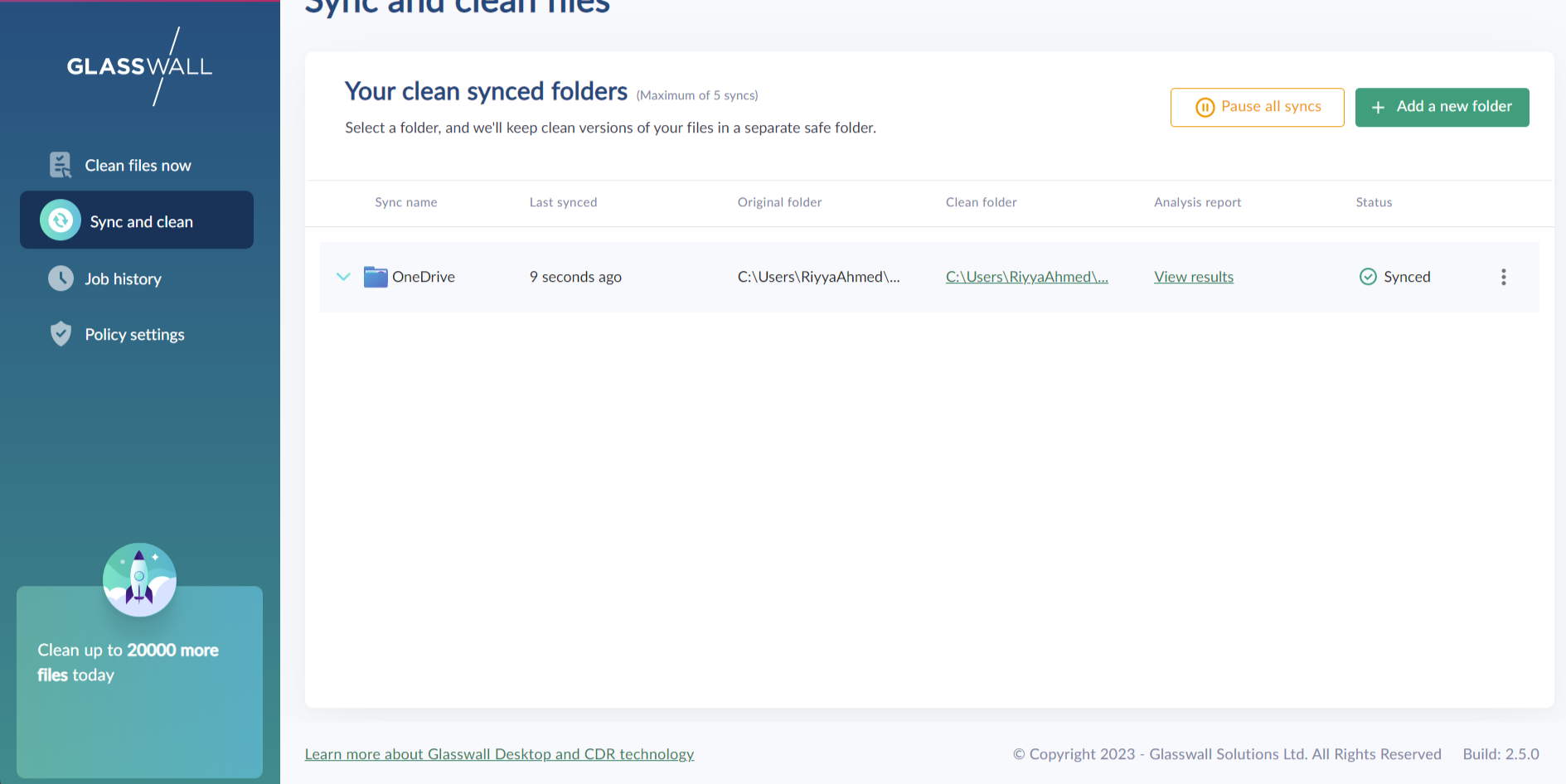 The folder now appears in the list of synced folders. Once the folder has
finished syncing, the Status will display as Synced.
The folder now appears in the list of synced folders. Once the folder has
finished syncing, the Status will display as Synced.