Clean files now
This option can be used to clean and rebuild files offline, directly from your machine without sending the file outside of your trust boundary.
-
From the Welcome screen or side navigation menu, select Clean files now.
-
In the window, you can input files in two ways:
- Drag & drop – drop a file directly into the blue drop zone.
- File input – click select files to select a file from your device.
-57ff52b4ebb5337f878e267f13f964dd.png)
The file is instantly cleaned, rebuilt, and saved in the specified folder.
Note: You can change the location of your saved files by selecting Change clean files location.
- After your file has been processed and rebuilt, the following items are available for your reference:
- Time started - the time you initiated the file processing.
- Original file - lists the original file name.
- Clean file - a link that allows you to choose where the cleaned file should be saved.
- Original risk status - the risk status of the original file.
- Current Protection status - confirmation that your file was successfully rebuilt.
- Analysis - a detailed analysis and breakdown of the changes made to your original file during the sanitization process.
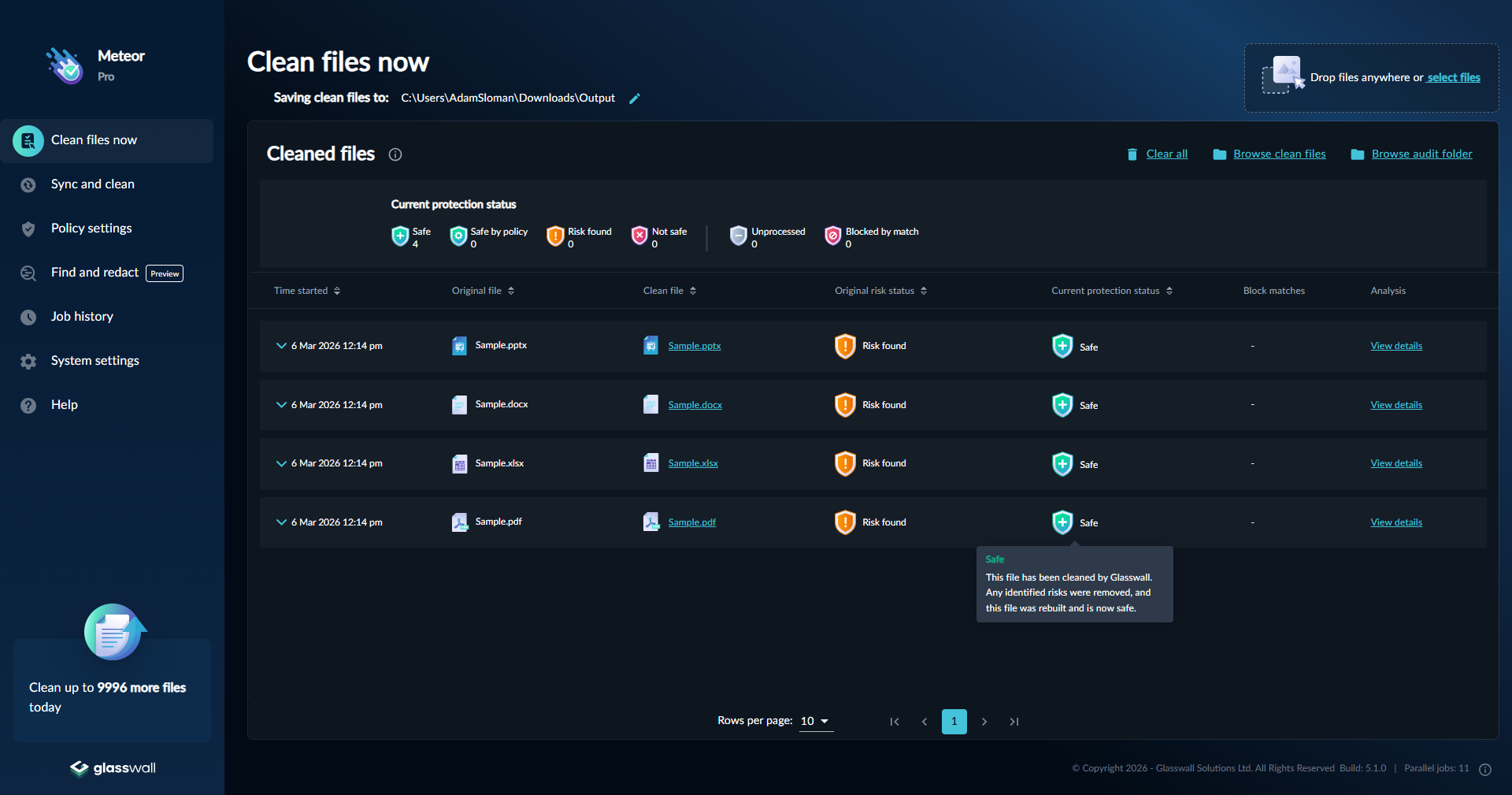
- Click View details to see a detailed report of the changes made to the original file.
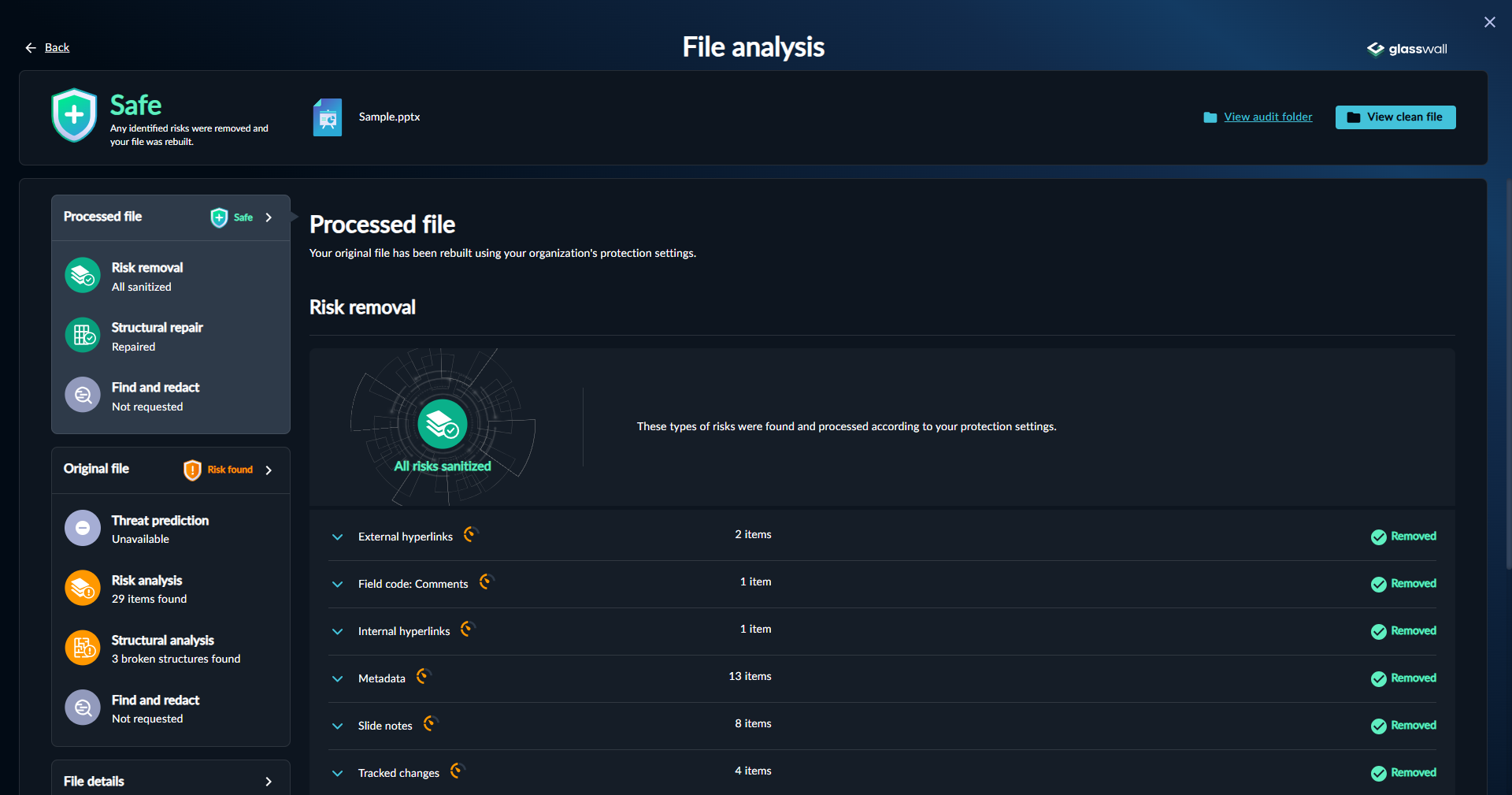
The following content is included in the File analysis report:
- Processed File information
- Details about what has been removed from your file
- Structural repair that occurred
- Redactions that have occurred
- Original file information
- Foresight threat prediction (see Foresight documentation)
- Risk analysis of the original file
- Structural analysis of the original file
- Find and redact information
- File Details
- Detected file type and Original extension
- Original and Processed file size
- File hashes
Note: if you have set custom policy settings allowing certain types of risky content, these will be flagged as allowed in the processed file information.