Box
Glasswall Meteor allows users to set up automatic folder synchronizations with various cloud drives. Follow these steps to sync Glasswall Meteor with folders in your Box drive:
- Download and install the Box Drive desktop app.
- Login using your account details.
- From your File Explorer, navigate to your Box drive.
- Identify the folder you would like to sync, and create a new folder for your clean files.
-f989009caaa0689ca53703d2833b8f5e.png)
-c7063a561a72b7f329bb59d4a332b2a9.png)
- Open Glasswall Meteor and navigate to the Sync and clean page.
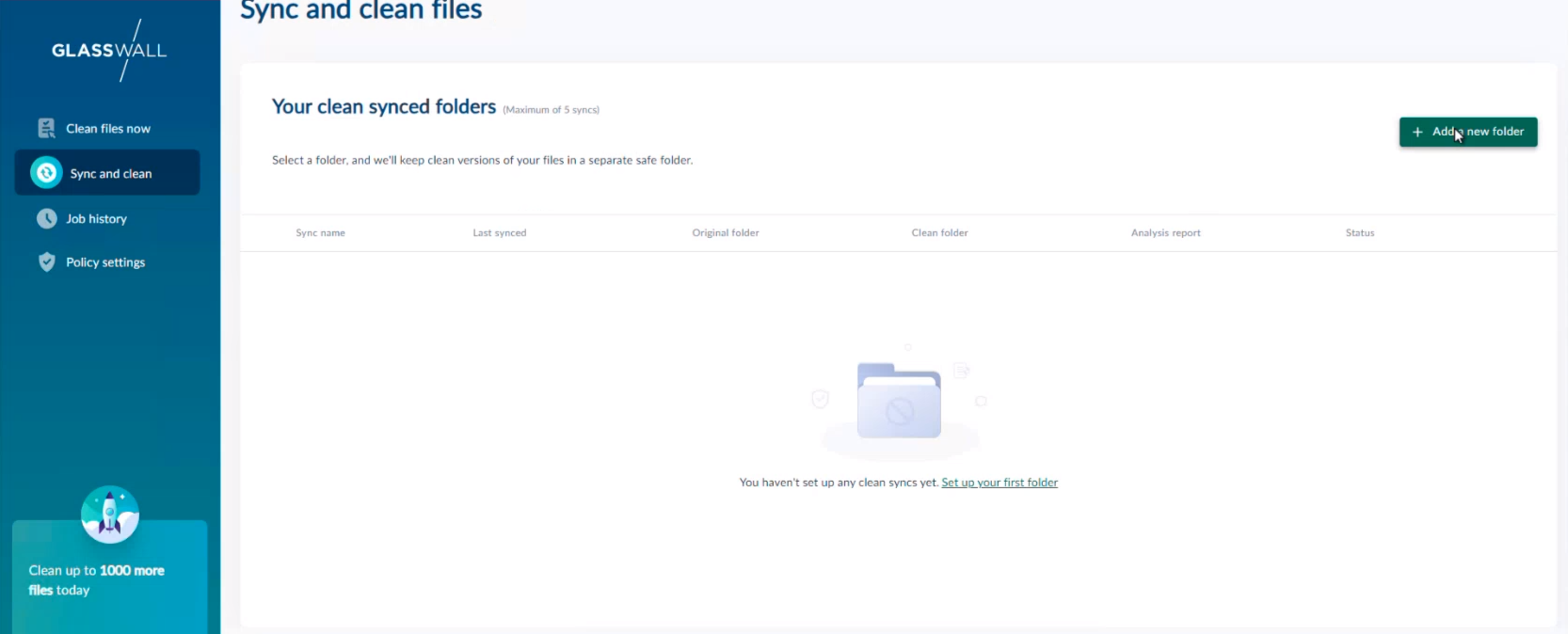
- Click Add a new folder.
- Enter a Sync name.
- From the Original folder field, click Browse and select the folder you would like to sync in your Box drive.
- From the Clean folder field, click Browse and select the folder you created earlier to store your clean files.
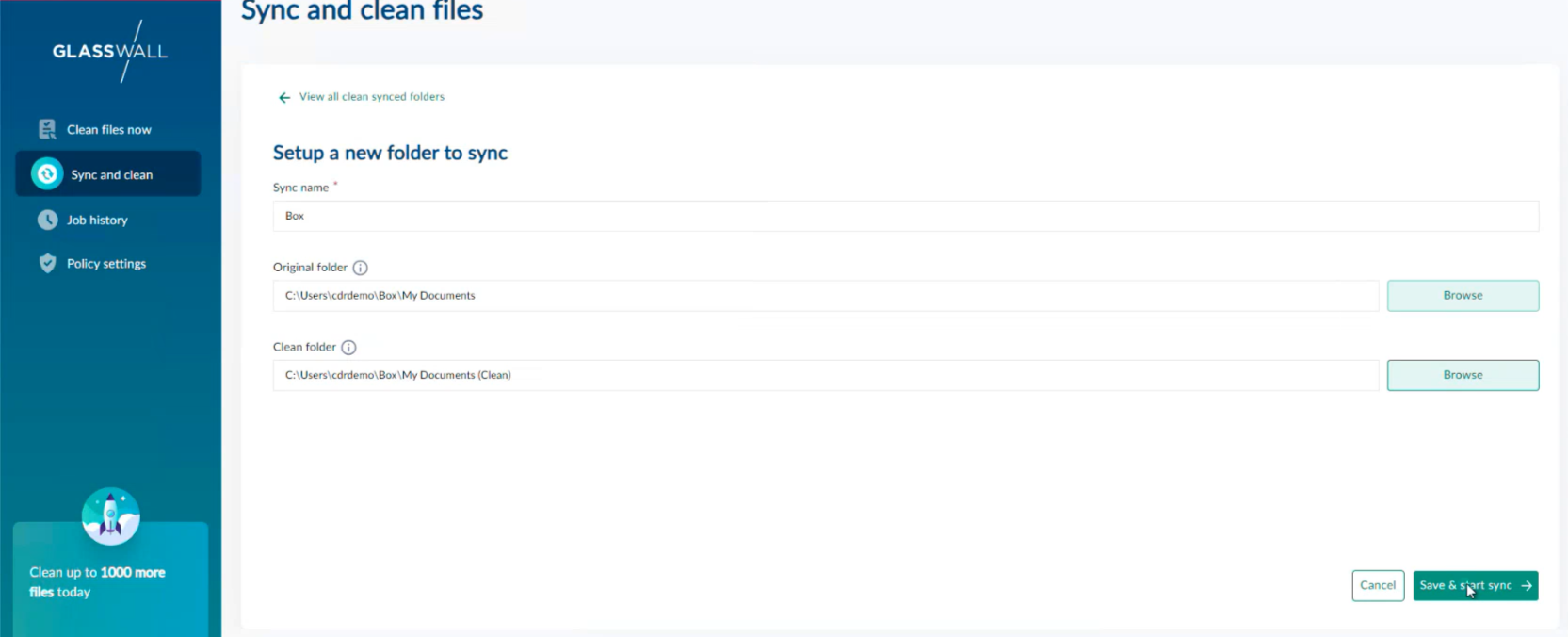
- Click Save & start sync, and a confirmation popup will appear.
-95d80c9c9b65ea8be30b1235b4fd1063.png)
- Click Ok.
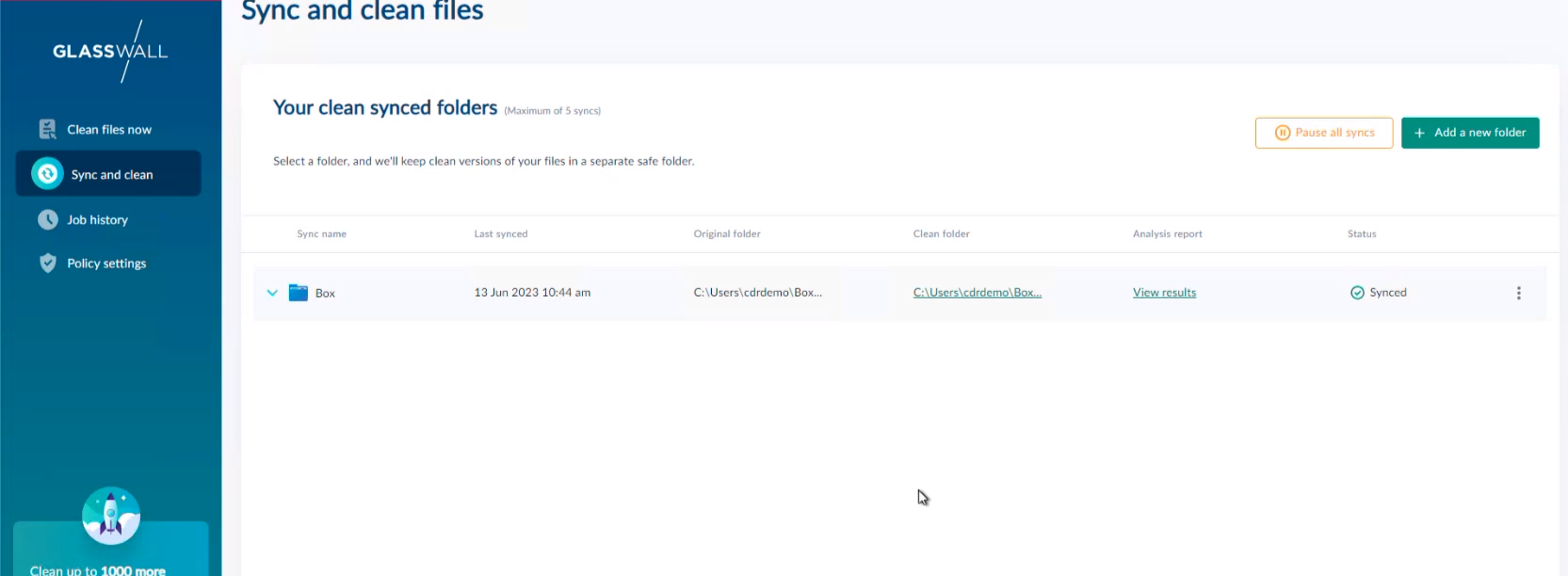
The folder now appears in the list of synced folders. Once the folder has finished syncing, the Status will display as Synced.