Install Glasswall Meteor Connect
Install Glasswall Meteor Connect
The following steps will guide you through the quick and easy Glasswall Meteor Connect installation process.
Installation
- From your file explorer, double-click the executable installation file provided to you by Glasswall.
- Click Install to proceed.
Note: you can change the default location by clicking Options.
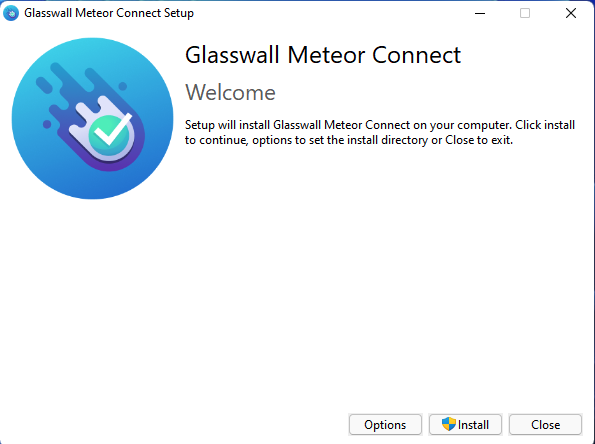
- When the dialog box displays, select the type of installation required (all users or the current user) and click Next >.
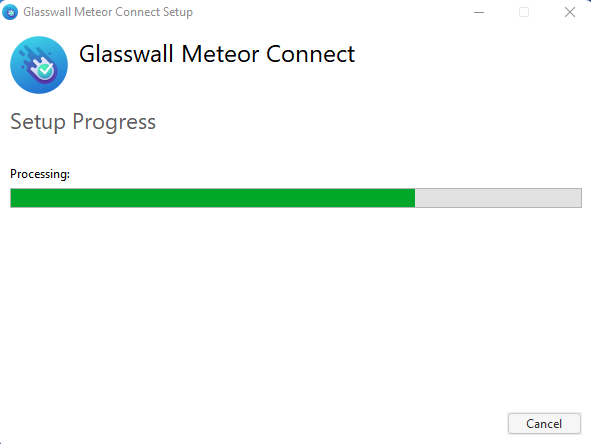
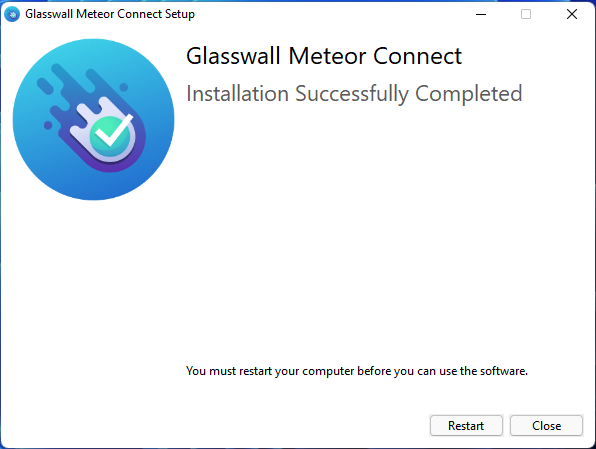
- Save any unsaved work and then click Restart.
This reboots your PC and the software installation will be completed.
An icon representing Glasswall Meteor will appear in the Taskbar. You may need to click the Show hidden icons arrow to view this.
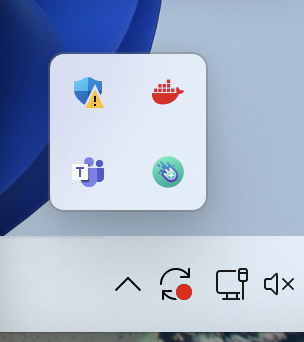
Clicking the Glasswall Meteor Connect icon will reveal a menu of options. This confirms that the software is installed and ready to be configured.
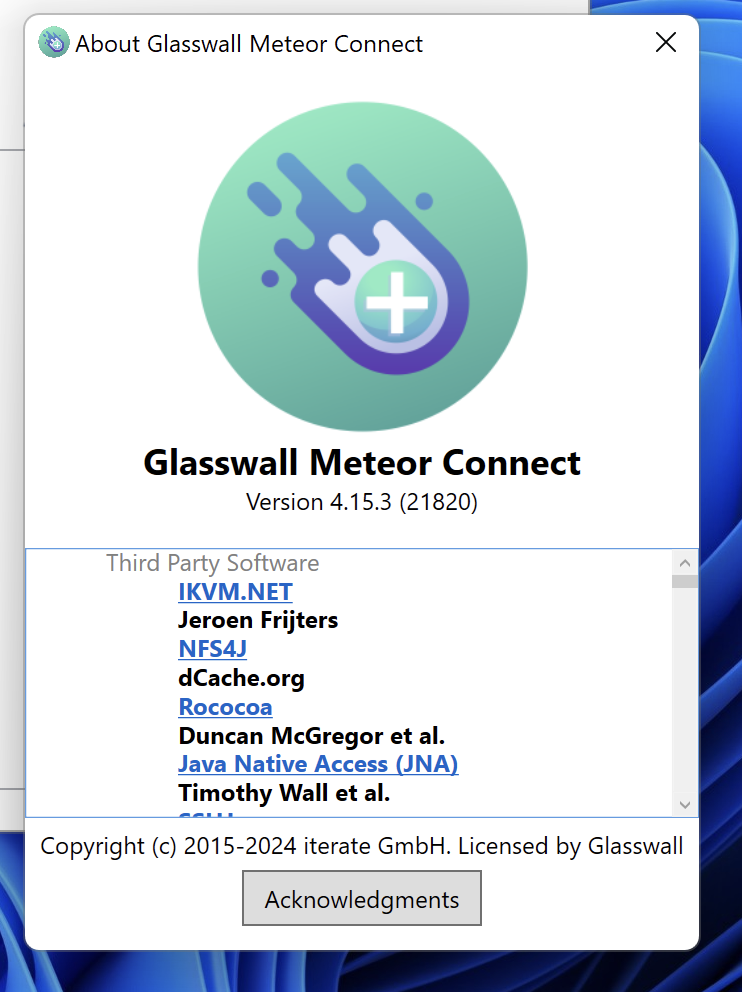
For extended installation guidance (based on Mountain Duck core behaviour), see Mountain Duck installation documentation.