Deployment
You can follow the steps below to complete the VMware deployment and setup, but please contact us if you have any questions or require more support.
-
Login to your VMware ESXi console.
-
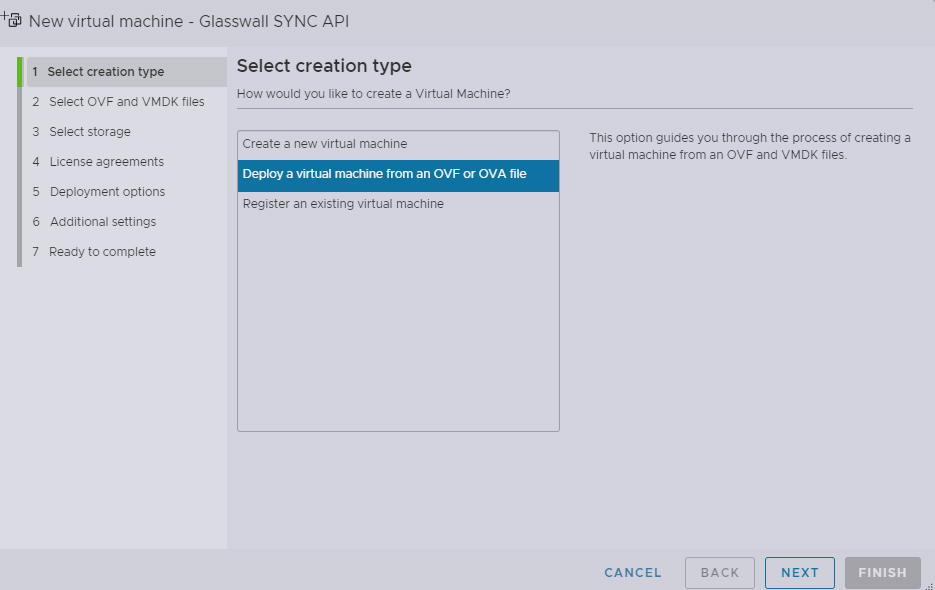
In the virtual machines page in ESXi select Create / Register VM to open the new virtual machine window.
-
Click Select creation type.
-
Select Deploy a virtual machine from OVF or OVA file and click Next.
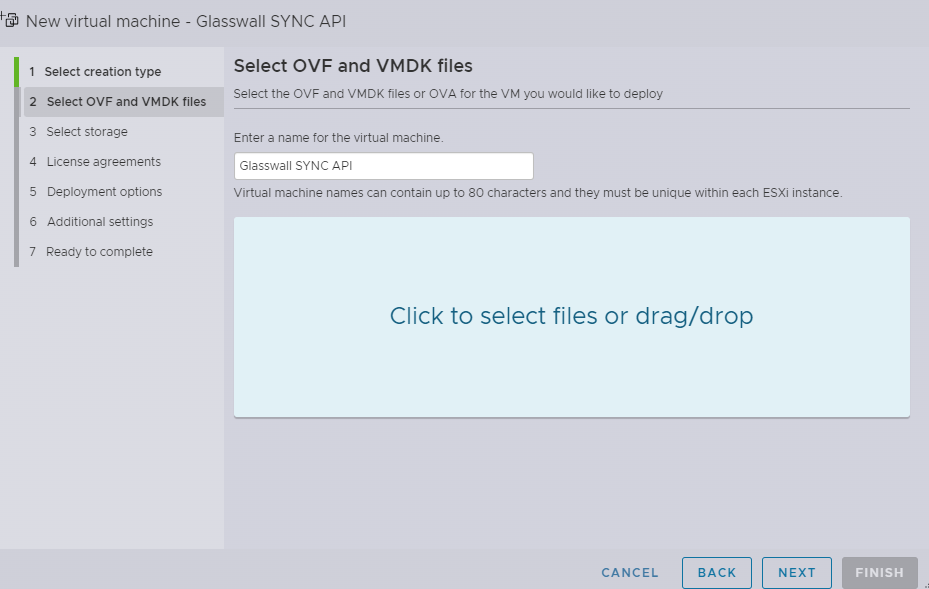
- Click Select OVF and VMDK files.
- Enter a name for your Glasswall Halo VM
- Browse and select the Glasswall Halo v2 OVA provided by Glasswall. Enter an appropriate name for the virtual machine.
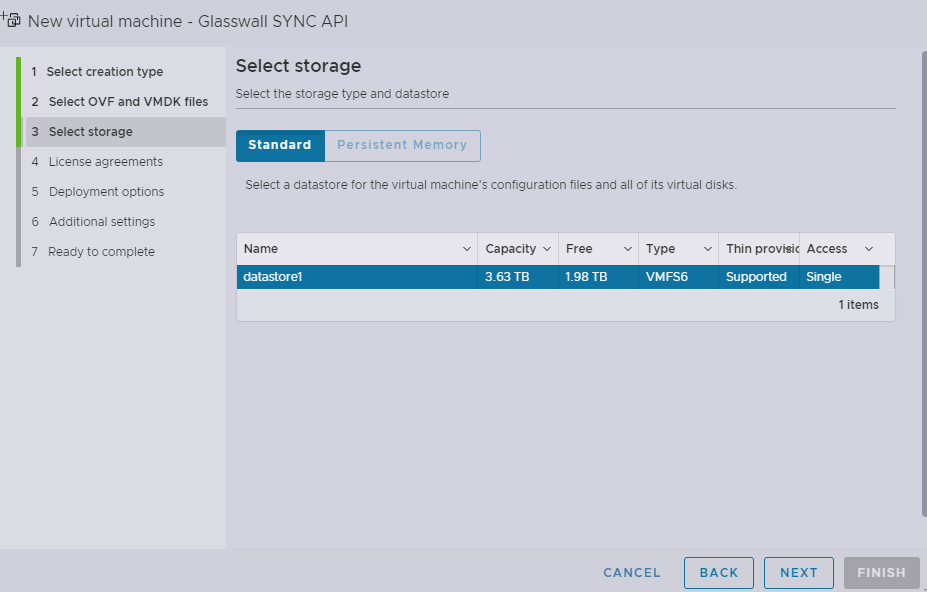
- Click Select storage.
- Select your storage type and datastore
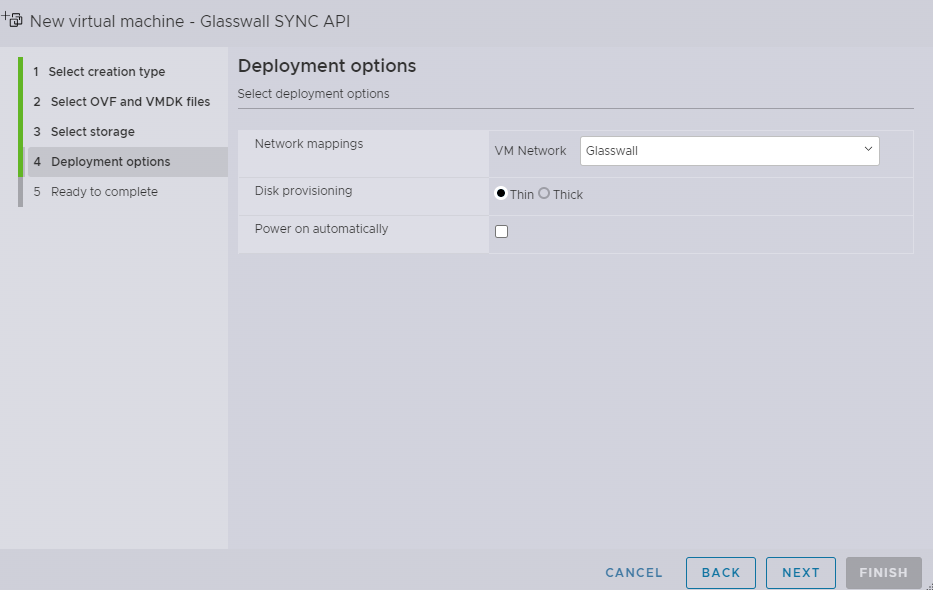
- Click Deployment options.
- Select the appropriate settings for the network mappings and disk provisioning.
- Uncheck Power on automatically
-
Click Finish and wait for the import to complete.
-
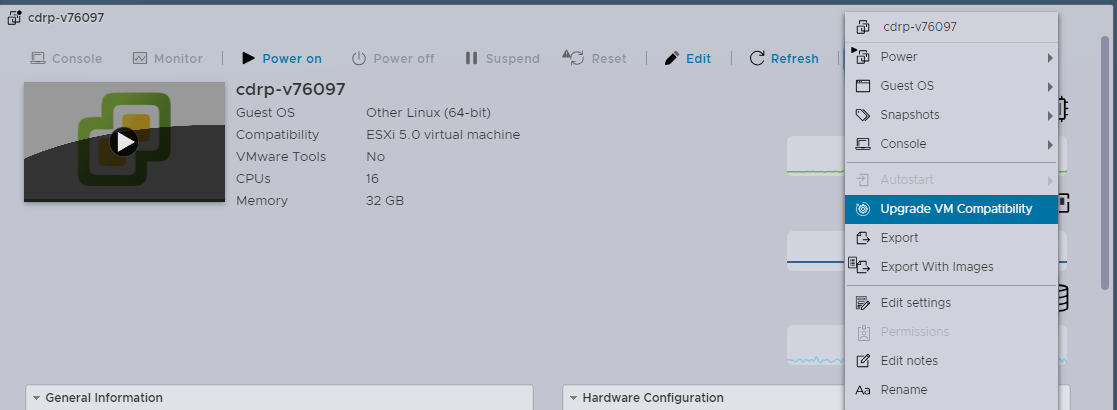
For the best support and feature functionality it is suggested that the image be upgraded to the host client OS compatibility.
- Select Upgrade VM compatibility under the Actions tab.
- Select the appropriate minimum level of compatibility from the drop-down (in our example it is ESXi 6.7/8.0).
Note: this process might negatively impact the performance of other client systems on the host, so it might be best to perform it in less critical Windows.
- Please note the acknowledgement of potential performance impact and click Yes.
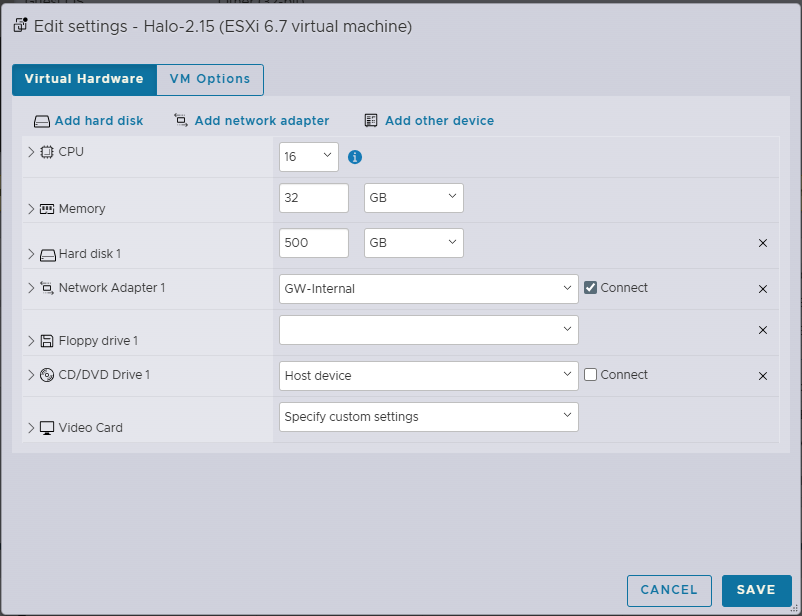
Edit settings (virtual hardware)
- Select Edit settings and from the Virtual hardware tab, modify:
- VCPU to (minimum) 16
- Memory to 32 GB RAM
- Hard disk 1 to (minimum) 500 GB SSD/HD.
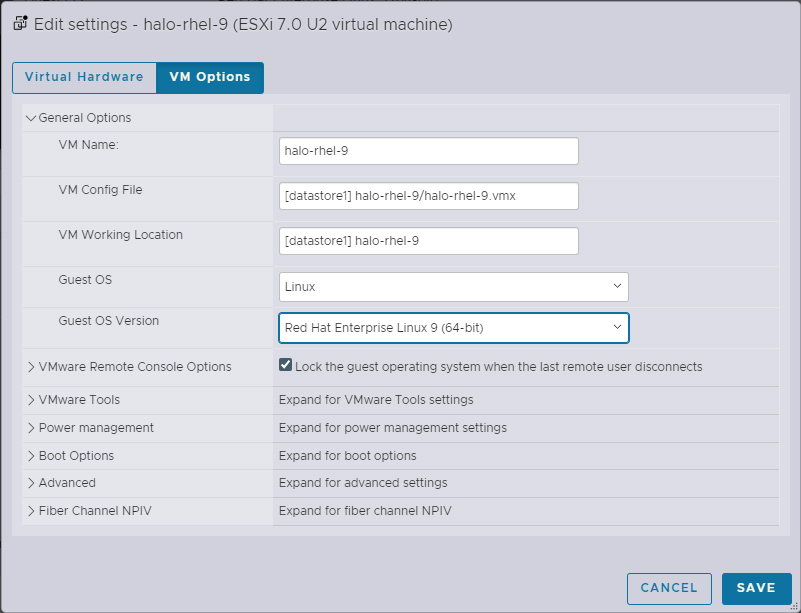
Edit settings (VM options)
12A. From the VM options tab, select General options to open the menu and adjust the server settings as needed.
Note: with the upgrade completed you can now select the correct guest operating system.
- Select Linux as Guest OS and Red Hat Enterprise Linux 9 (64-bit) as the Guest OS Version.
12B. Click Save.
Launch machine
- Verify that the Compatibility, **CPU and Memory allocation are all correct.
- Power on and launch the virtual machine.
- Login with your provided credentials.
Password change
- For security reasons, you must change the default password provided by Glasswall on your first login. After signing in with the shared credentials, set a new password for the virtual machine.
Note: your new password must be at least 15 characters long and include a combination of uppercase letters, lowercase letters, numbers, and special characters. Repeating characters are not permitted.
Network manager configuration
Note: if your network has a DHCP server, the virtual machine will be assigned an IP address automatically and this step can be skipped.
Per your network defined configurations and boundaries
- Before configuring the virtual network's network you need to know the MAC address of the ethernet the machine is running.
- Run nmcli in the console to determine which network the virtual machine is using.
- Once you know which network to edit, run the following command to launch the network manager tool and select Edit a connection.
nmtui
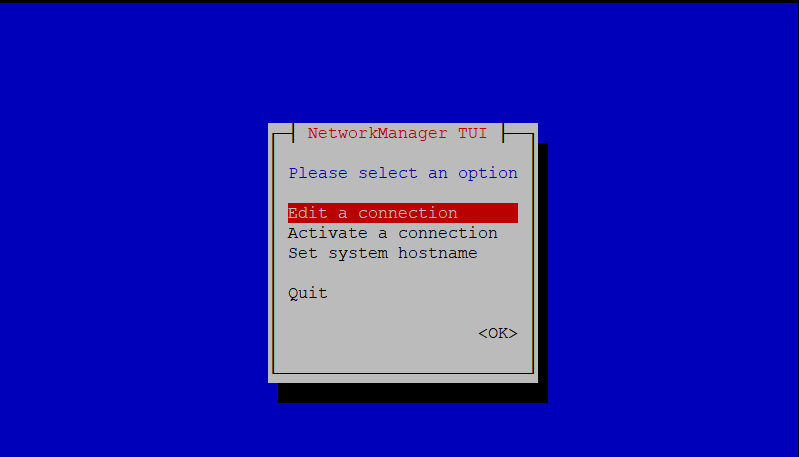
- Based on your configuration requirements:
- Add network adapter or edit connection.
- In our example we edit the connection the virtual machine is using.

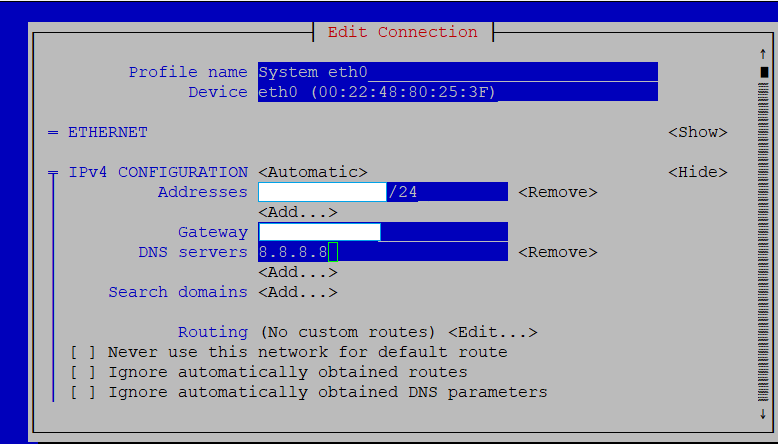
- Select Show for the IPV4 configuration, this will provide options to edit IP addresses, gateway, DNS servers.
Note: if you would like to setup your OVA without internet access, your DNS IP range should be set the same as your VM IP.
- Enter the required information, then scroll to the bottom and click OK.
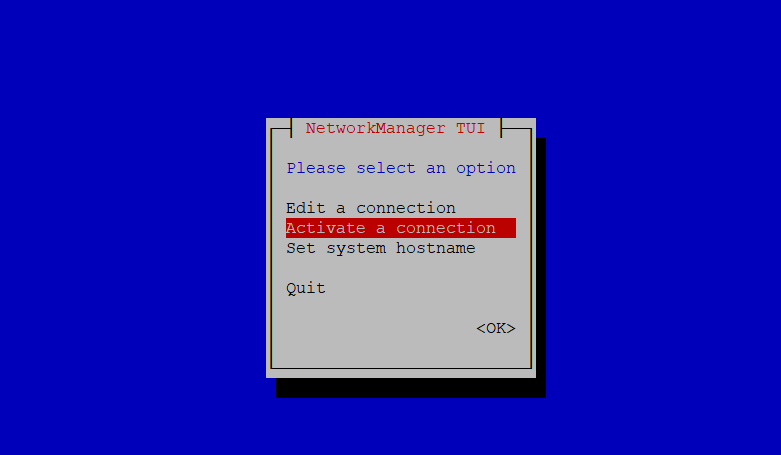
- Navigate back to the Network Manager TUI main screen, then select Activate a connection and ensure your connection is set to Activated.

- Exit and execute the following command:
sudo systemctl restart NetworkManager
Initiate Glasswall Halo services
Note: if your network has a DHCP server, this step can be skipped as the RKE2 server will be started automatically by cloud-init.
- Execute the following command to launch Glasswall Halo:
bash start_halo.sh
- Once the script has completed, confirm all the Glasswall Halo services and pods are running using the following command:
kubectl get pods
Access Glasswall Halo
-
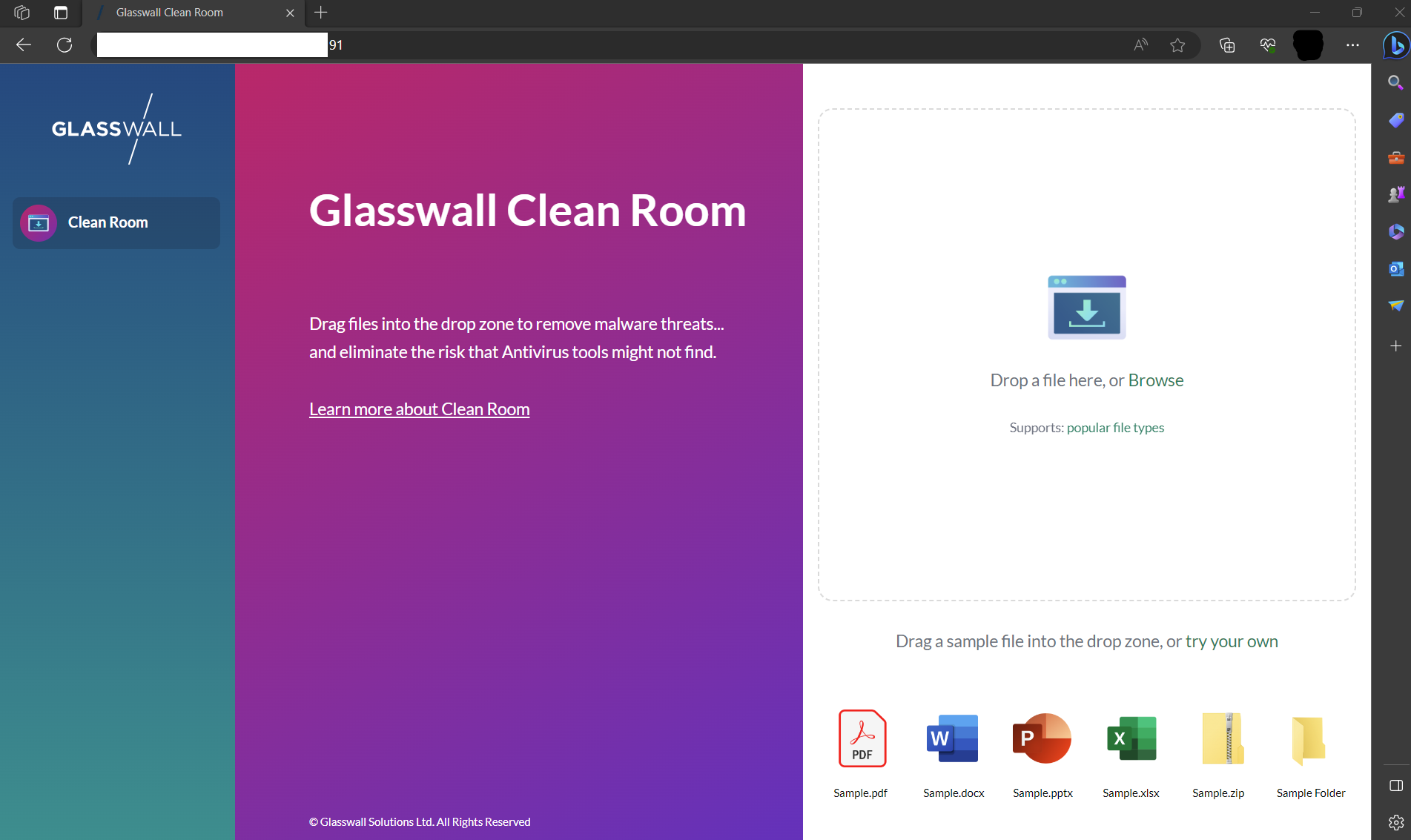
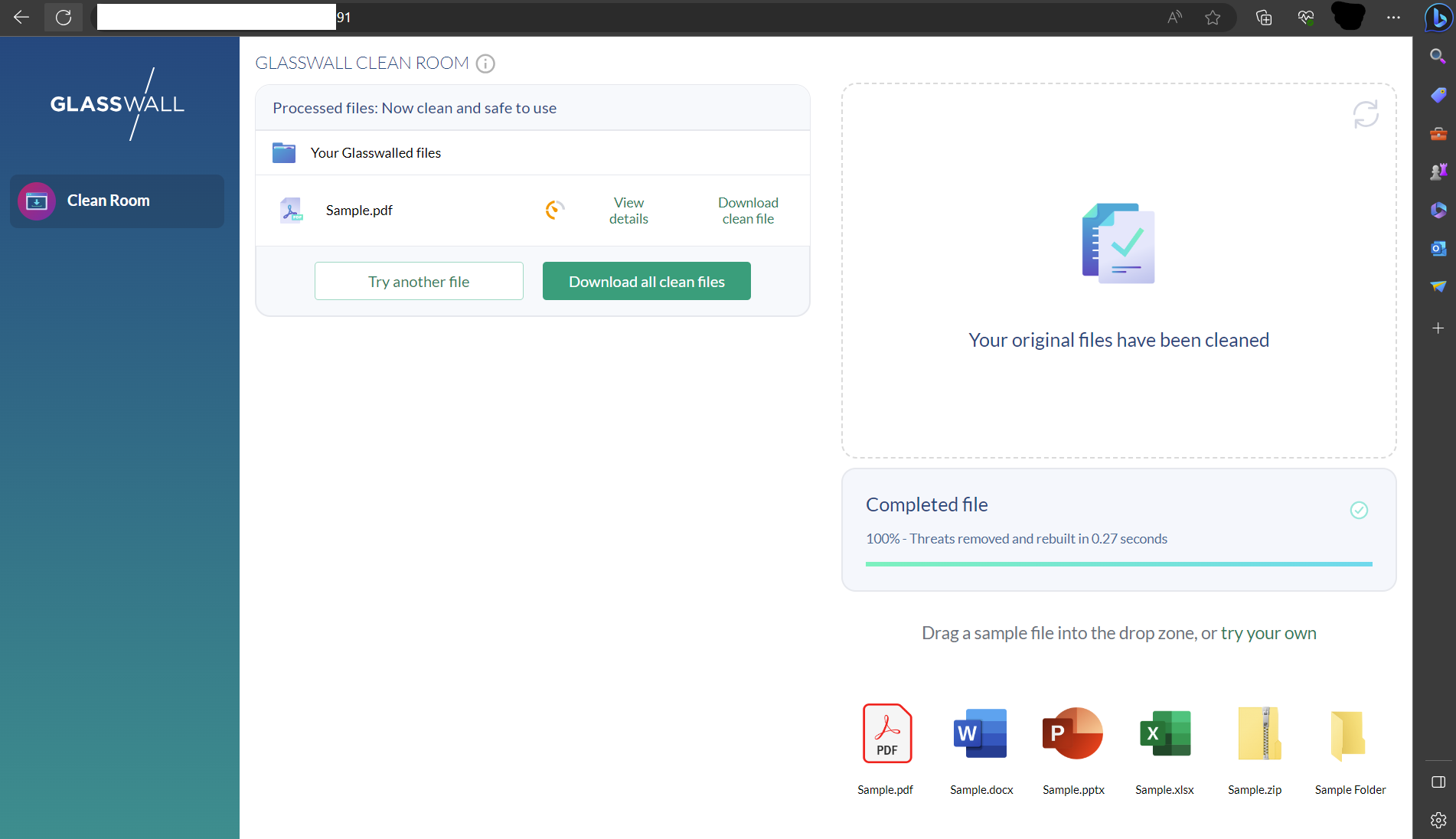
Depending on your network configuration and/or domain configuration, you can now access Halo through the domain name and/or IP address assigned to your virtual machine.
-
Run the following command to confirm network status:
sudo netstat -tlnp
Access Glasswall Swagger API endpoints
Navigate to the following URL to access the Glasswall Halo API endpoints:
https://[your domain or ip]/swagger/index.html
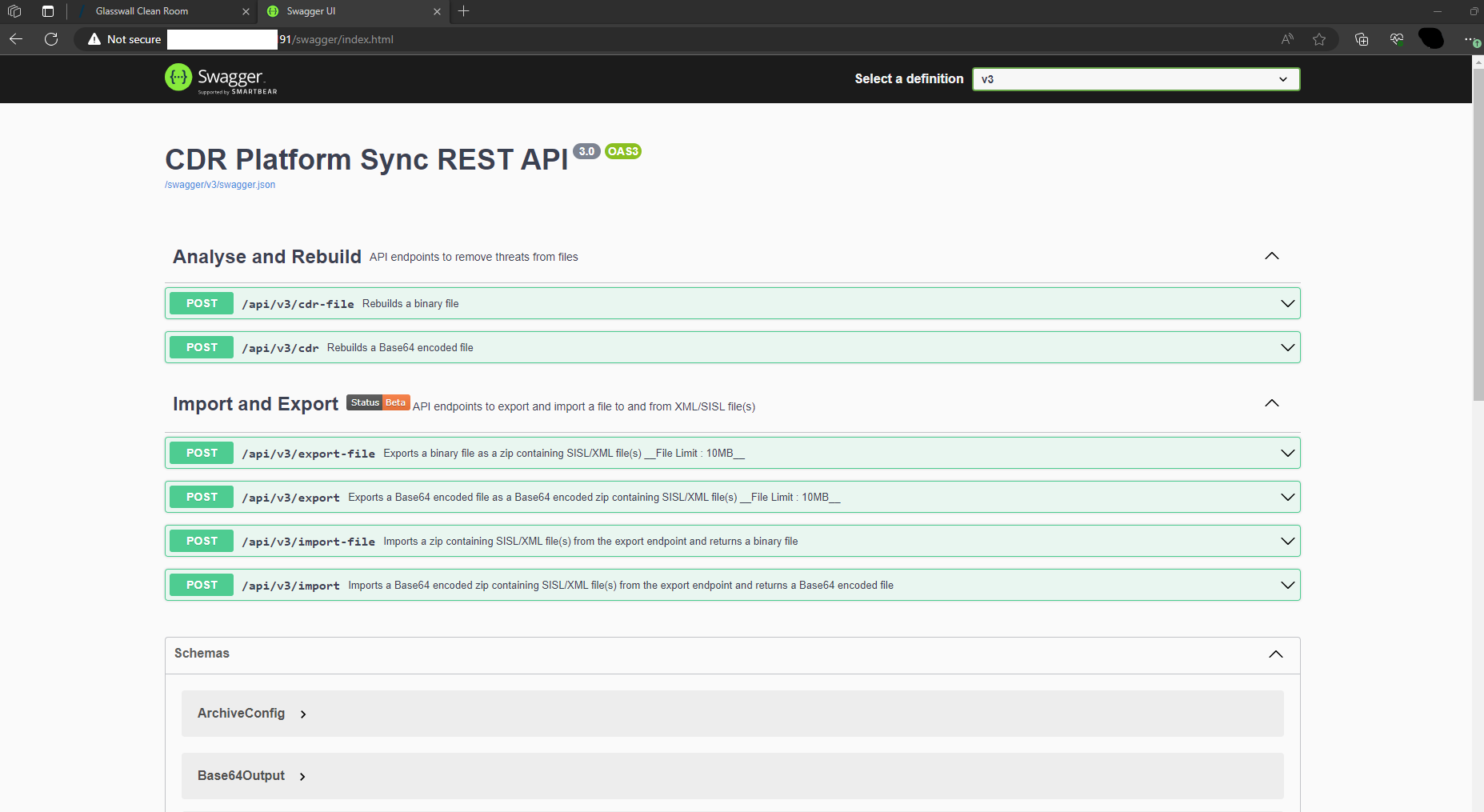
Note: don't forget to enter your own domain or IP address into the URL.
Validating deployment
You are able to validate the deployment by using our API Health Check feature.